Clinical Study Research (CSR)

Medical Director Portal User Guide

1. Doctor Account Setup

Process Overview

StepAction
1Your Clinic Administrator adds you to the system.
2You receive an email notification with account details and a secure setup link.
3You click the link, set your password, and activate your account.

Email Contents

The notification email includes:

FieldDescription
Clinic NameName of the clinic you are associated with
Clinic CodeUnique identifier for the clinic
UsernameYour login username (usually your email)
EmailYour registered email address
RolePhysician
Setup LinkSecure link to create your password and activate your account
Doctor welcome email with account details and setup link

What to Do After Receiving the Email

  1. Open the email titled "Welcome to Clinical Study Research – Physician Account Access."
  2. Click the Set Up Your Password link inside the email
  3. Create a secure password (follow the on-screen requirements)
  4. After successful password creation, your account becomes active
  5. You can now log in to the Doctor Portal using your email and the password you created

✅ Result: Your doctor account is created and ready for use.

Password setup screen screenshot

2. Login & Dashboard

How to Log In

  1. Go to the login page provided in your welcome email or navigate to https://clinicalstudyresearch.com/login
  2. Enter your Email and Password
  3. Click Login
Login page screenshot
Login credentials entry

Dashboard Overview

Overview: After logging in, you are redirected to the Dashboard. This is your main control panel.

MetricDescription
Total PatientsNumber of patients assigned to you
Active CasesCurrently active patient cases under your care
Today's Follow-upsScheduled follow-ups due today
Recent PatientsMost recently added or updated patients

👉 The dashboard gives you a quick snapshot of your clinical activity.

Dashboard overview with key metrics

The left sidebar contains the following sections:

  • Dashboard – Main summary view
  • Patients – Manage all assigned patients
  • Documents – Access clinic documents

3. Access Control (Important)

🔒 Rule: As a doctor, you can only see:

  • Patients assigned to you
  • Data from your own clinic

What you CANNOT see:

  • Patients assigned to other doctors
  • Data from other clinics
  • Administrative settings

👉 If your clinic adds you as a doctor → you only see that clinic's patients and data.

4. Patient Management

4.1 How to View the Patients' List

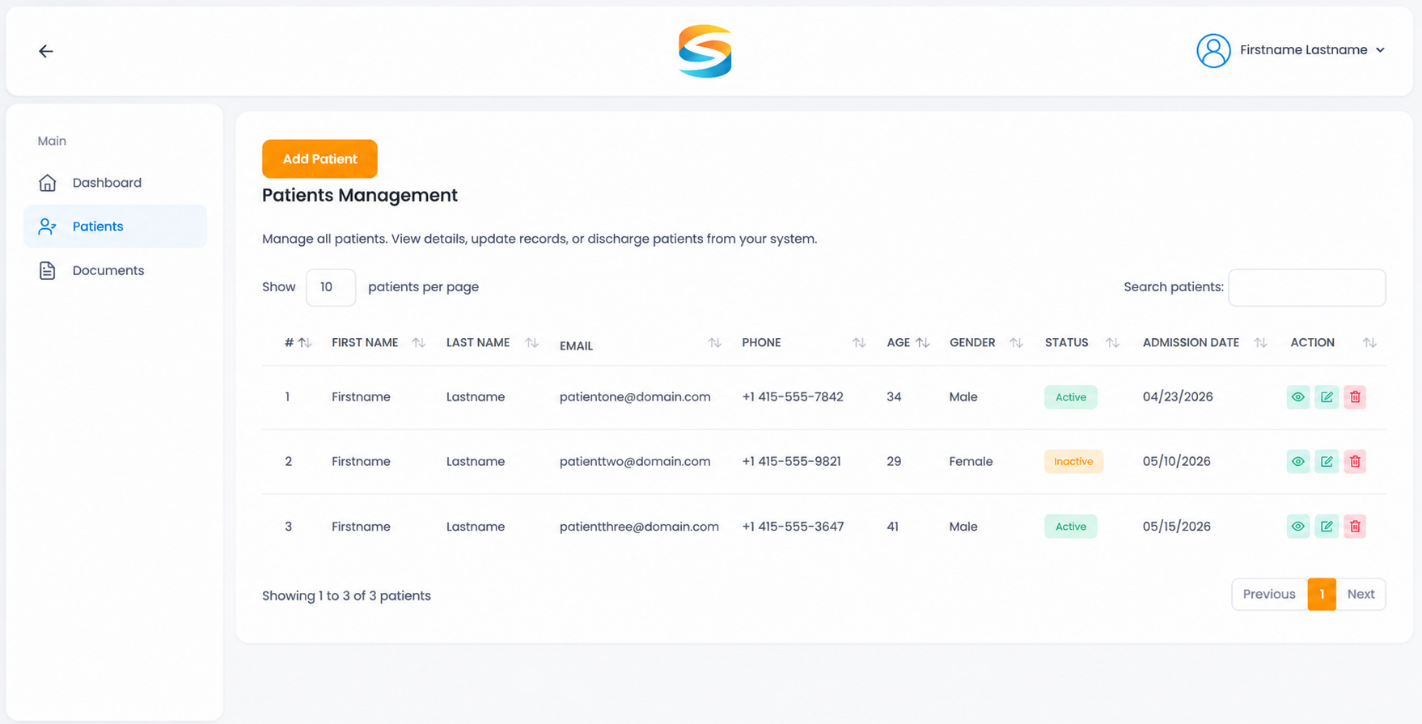
Overview: The Patients page displays a table of all patients assigned to you.

Steps:

  1. From the left sidebar, click Patients
  2. The Patients Management page opens, showing a table of your assigned patients

What the Patients Table Displays:

ColumnDescription
#Row number
PATIENT NAMEPatient's full name
EMAILPatient's email address
PHONEPatient's contact phone number
AGEPatient's age (calculated from Date of Birth)
GENDERPatient's gender (Male/Female/Other)
STATUSActive or Discharged/Inactive
ADMISSION DATEDate the patient was added to the system
ACTIONView button (👁️) and Edit button (✏️)

Table Features:

FeatureDescription
Search patientsSearch bar to filter patients by name, email
Showing entriesDisplays "Showing 1 to X of Y patients."
Previous/NextPagination buttons to navigate between pages
Navigation to Patients in sidebar
Patients management table with all columns

4.2 How to Add a New Patient

Overview: Add a new patient to your clinic. The system automatically sends a welcome email with a password setup link.

Steps:

  1. From the left sidebar, click Patients
  2. Click the Add Patient button (above the table)
  3. Fill in the patient details:

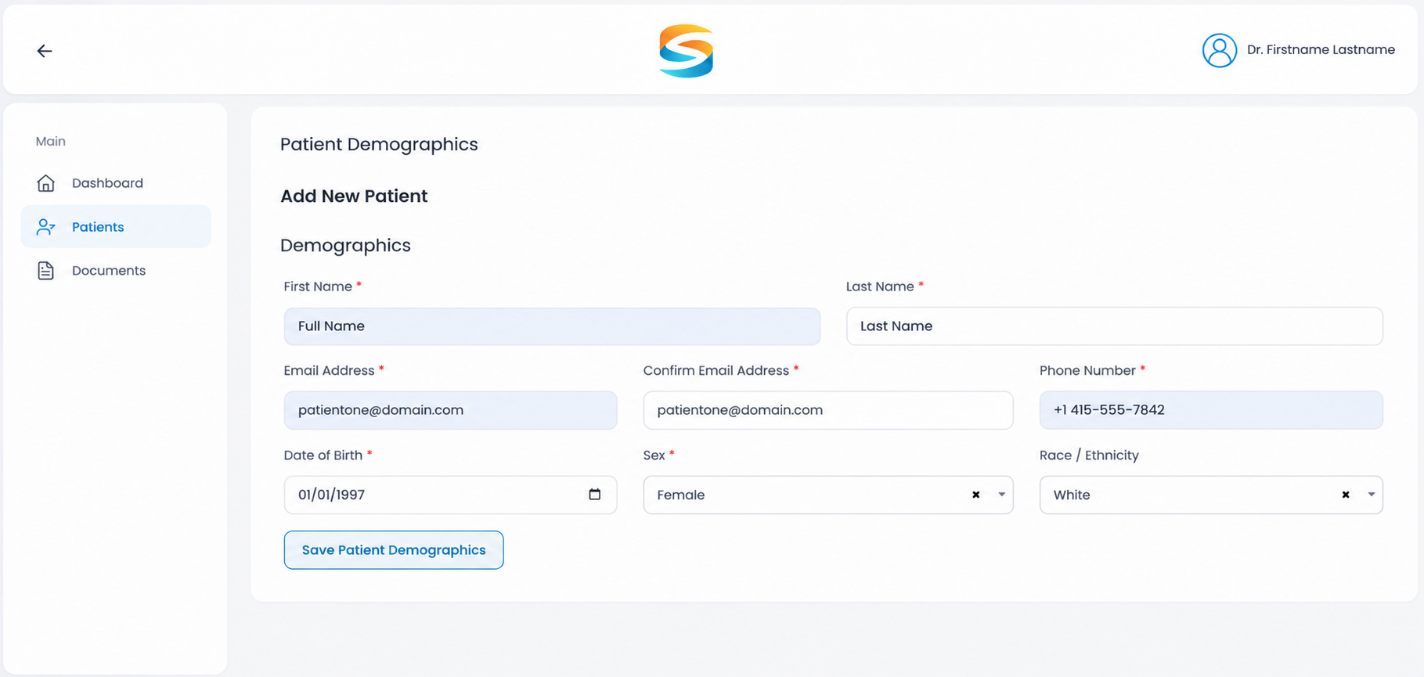
Patient Demographics Form Fields:

FieldDescriptionRequired
First NamePatient's first name✅ Yes
Last NamePatient's last name✅ Yes
Email AddressPatient's email address✅ Yes
Confirm Email AddressRe-enter email to confirm✅ Yes
Phone NumberPatient's contact number✅ Yes
Date of BirthPatient's date of birth (age auto-calculates)✅ Yes
SexMale, Female, or Other✅ Yes
Race / EthnicityPatient's race/ethnicity (e.g., White, Black, Asian, Hispanic)Optional
  1. Click Save Patient Demographics
Patients table with Add Patient button
Add Patient demographics form

✅ Result: The patient is added to the system and automatically linked to you as the treating physician. An automatic email is sent to the patient with a password setup link.

⚠️ Important Note: The email address cannot be changed for existing patients. Double-check the email before saving.

4.3 Patient Email Notification Workflow (Automatic)

Overview: When you add a patient, the system automatically sends an email to that patient.

The email includes:

  • Password setup link (secure link to create account password)

Account Setup Flow for Patients:

StepAction
1The patient receives the email with the secure setup link.
2They click the link and create their account password.
3After setup, the patient can log in to the Patient Portal.
4Patients can submit follow-up questionnaires and track their progress.
Patient welcome email screenshot

⚠️ Important Note: You do not need to create a password for the patient manually. The system handles this automatically through the email link.

4.4 How to Edit a Patient (Update Demographics)

Overview: You can edit patient information at any time. Note that email cannot be changed for existing patients.

Steps:

  1. In the Patients table, locate the patient
  2. In the ACTION column, click the Edit button (✏️ pencil icon)
  3. The Patient Demographics form opens with all current information pre-filled
  4. Update the necessary fields
  5. Click Update Patient Demographics
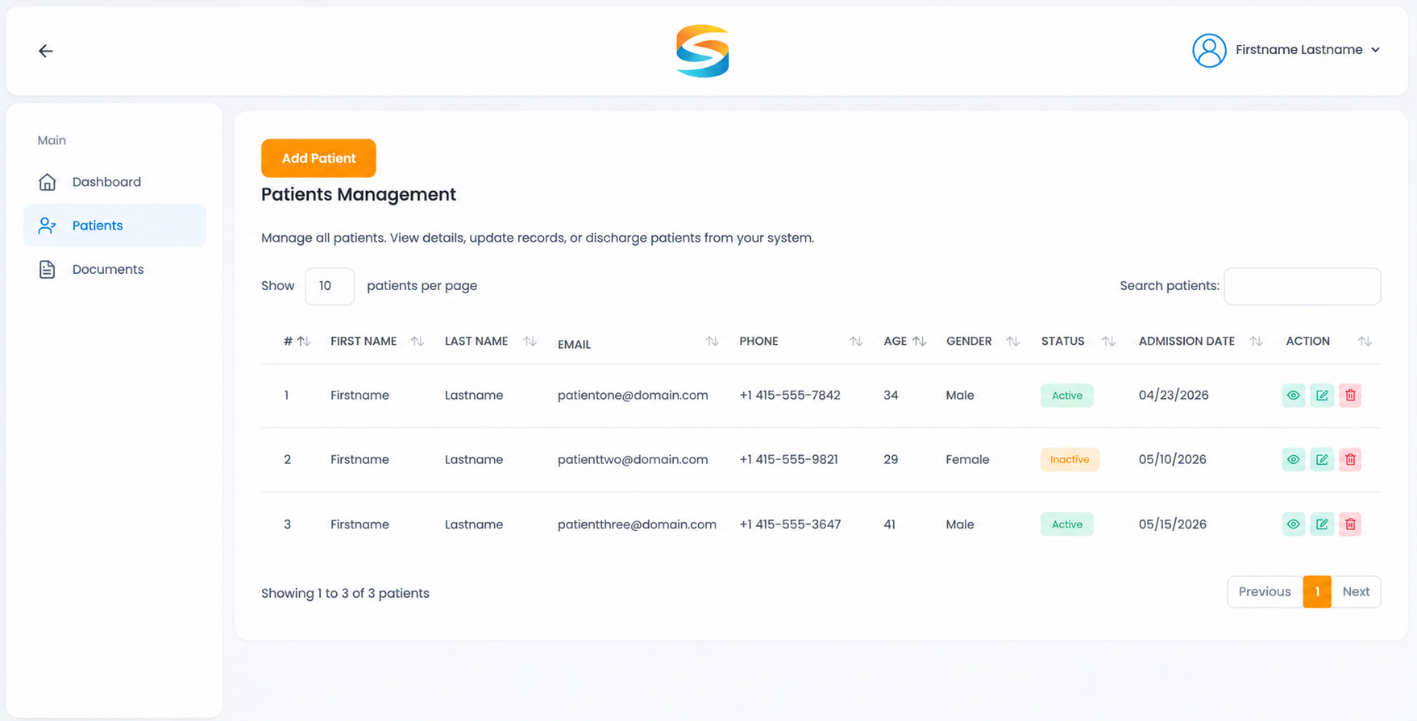
Patients table with Edit button
Edit Patient Demographics form pre-filled

What you can edit:

FieldEditable?Notes
First Name✅ Yes
Last Name✅ Yes
Email Address❌ No"Email cannot be changed for existing patients."
Phone Number✅ Yes
Date of Birth✅ YesAge will recalculate automatically
Sex✅ Yes
Race / Ethnicity✅ Yes

After Editing:

✅ Patient information is updated immediately
✅ Changes are reflected in the Patients table
✅ No email notification is sent for demographic updates

4.5 How to Search for Patients

Overview: Use the search bar to find specific patients by name or email quickly.

Steps:

  1. Locate the Search patients bar at the top of the Patients table
  2. Type any keyword (e.g., patient name or email)
  3. The table automatically filters to show only matching results

Search Examples:

  • "John" – finds all patients with "John" in the first or last name
  • "john@email.com" – finds a patient by email address
Search bar in Patients table

14.6 How to Delete an Entire Patient Record

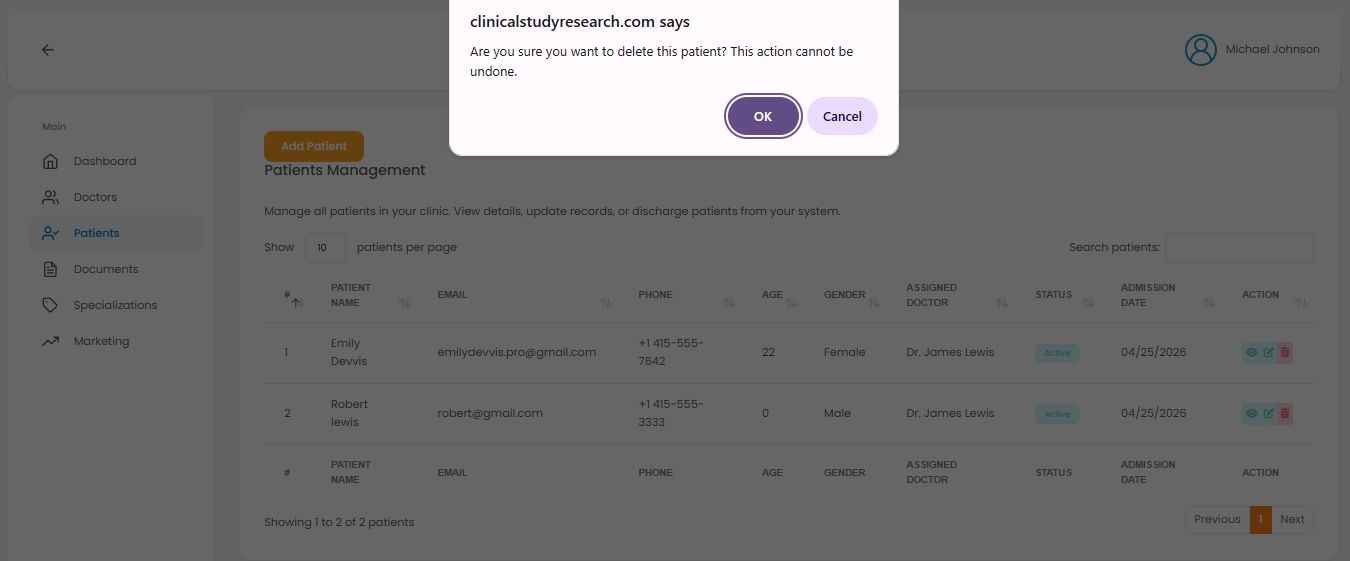
Overview: You can delete the entire patient record. A confirmation modal appears to prevent accidental deletion.

Steps to Delete a Patient:

StepAction
1From the left sidebar, click Patients.
2Locate the patient in the Patients table.
3Click the Delete button (trash icon) in the Actions section.
4A confirmation modal appears.
5Click Yes, Delete to confirm deletion.
6Click Cancel to abort and keep the patient.
Patients table with Delete button
Delete patient confirmation modal

5. Patient Case Management

Overview: From a patient's record, you can view, add, and manage clinical cases.

Features:

FeatureDescription
View all cases of a patientSee complete case history.
Add new caseCreate a new case for an existing patient.
Edit existing caseModify case details as needed.
Track case progressMonitor patient through treatment workflow.

How to Access Patient Cases:

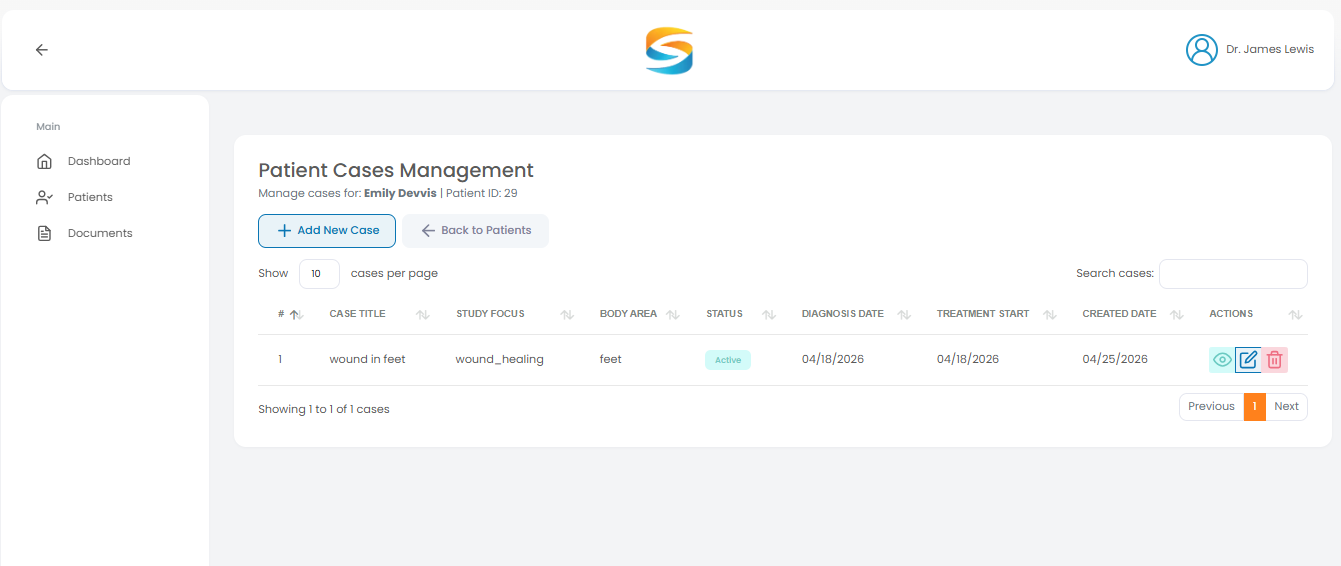
  1. From the Patients table, click the View button (👁️) next to a patient
  2. You will see the Patient case page with all existing cases
  3. From here, you can view existing cases or add a new one

6. Create a New Case

Overview: Create a new clinical case for an existing patient. When you add a case with a Treatment Start Date and Follow-up Interval, the system automatically creates follow-ups and sends email notifications to the patient.

Steps to Add a Case

StepAction
1From the Patients table, click View Patient (👁️)
2Click Add New Case
3Fill in the required fields (see table below)
4Click Save

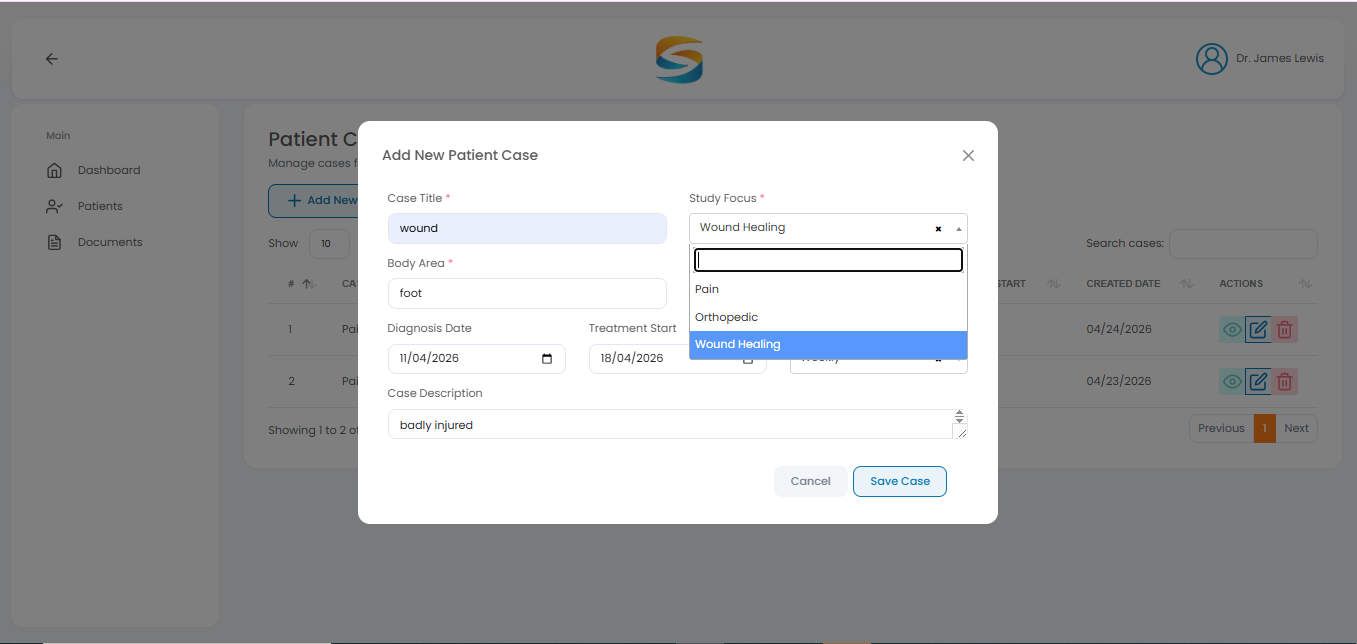
Case Creation Form Fields

FieldOptions / DescriptionRequired
Case TitleEnter a descriptive title✅ Yes
Study FocusWound Healing / Pain / Orthopedic✅ Yes
Body AreaEnter area (e.g., Knee, Spine)✅ Yes
Diagnosis DateSelect date✅ Yes
Treatment Start DateSelect date (triggers follow-ups)✅ Yes
Follow-up IntervalWeekly / Biweekly / MonthlyOptional (defaults to Weekly)
DescriptionOptional notesOptional
Patients table
Patient cases page with Add New Case button
Add New Case creation form

Study Focus Options

Study FocusUsed For
Wound HealingChronic wounds, surgical wounds
PainChronic or acute pain management
OrthopedicBones, joints, ligaments
Study Focus dropdown options

Follow-up Interval Options

IntervalSchedule
WeeklyEvery 7 days (default)
BiweeklyEvery 14 days
MonthlyEvery 30 days

Note: If no interval is selected, Weekly is the default.

Follow-up Interval dropdown

Schedule Date & Due Date

TermMeaning
Schedule DateThe day follow-up is created.
Due DateSchedule Date + 3 days (patient has 3 days to complete)

Example:

Schedule DateDue Date
April 23, 2026April 26, 2026

Automatic Workflow (After Saving)

StepAction
1The system creates the first follow-up.
2System sets Due Date = Schedule Date + 3 days
3Email sent to patient with Due Date.
4Patient completes questionnaire
5Email & notification sent to you (the doctor)
6Next follow-up is created automatically.
7Process repeats automatically

Important Rules

RuleDescription
Treatment Start DateRequired for follow-ups to auto-create
Due DateAlways 3 days after the Schedule Date
RepeatFollow-ups continue automatically
Next Follow-upCreated only after the patient completes the current one

7. Case Workflow Guide

Overview: After creating a case, click View Case. The system guides you through 9 sections in order. Each section must be completed before the next becomes available.

Patient cases with View Case option

Case Workflow Tabs (All 9 Tabs)

The following tabs appear at the top of the case page:

TabSection
1Consent
2Baseline
3Diagnosis & Condition
4Treatment Details
5Imaging Information
6Adverse Events
7Outcomes
8Provider & Facility
9Follow-Up
Case workflow tabs overview

Important Follow-up Logic

ScenarioWhen Follow-up Creates
Treatment Start Date entered during case creationFollow-up is created immediately
Treatment Start Date not entered during case creationFollow-up is created when the Treatment Details page is saved

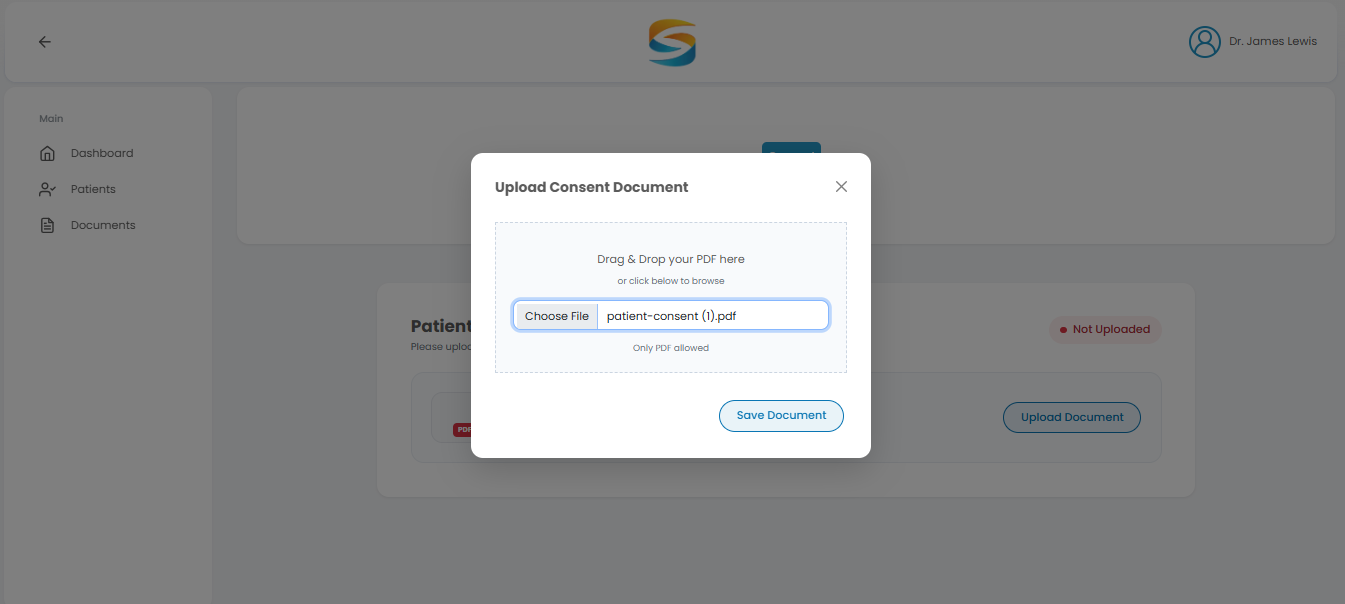
Overview: Upload the patient's signed consent form. This is mandatory and must be completed before proceeding to other tabs.

Steps:

  1. Click Upload or Choose File
  2. Select the signed consent PDF file from your computer
  3. Click Save
Consent document upload tab
Consent document file selection

Supported file formats: PDF, DOC, DOCX, JPG, PNG

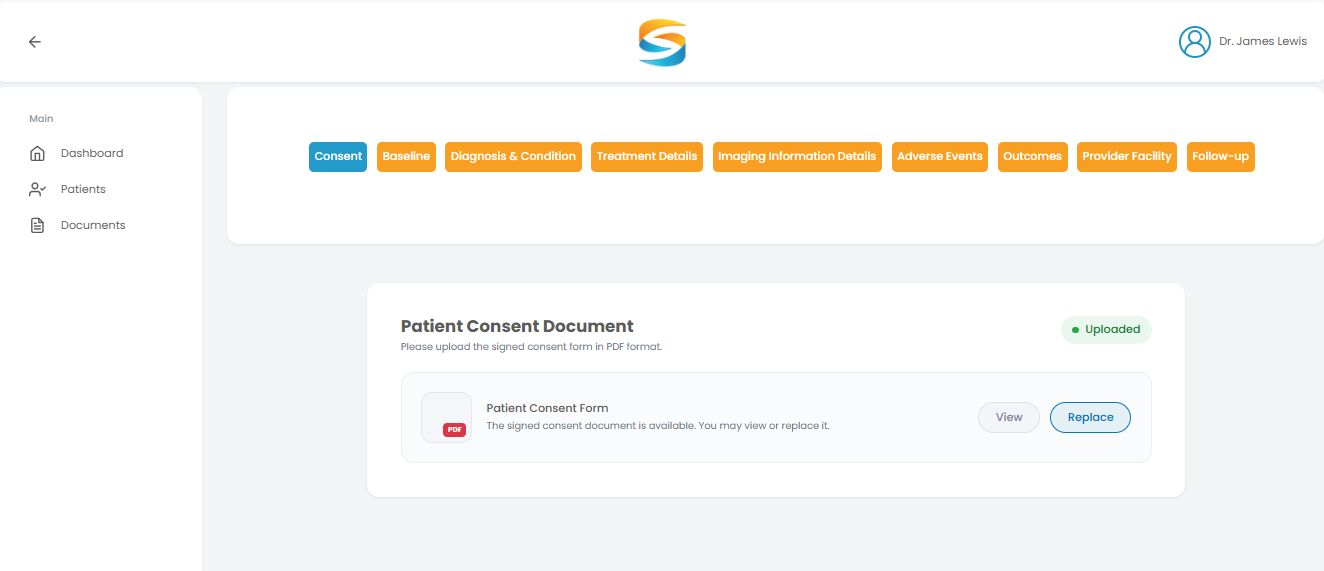
✅ After uploading, you can:

  • View the document (👁️ eye icon)
  • Replace the document with a new version
Consent document view and replace options

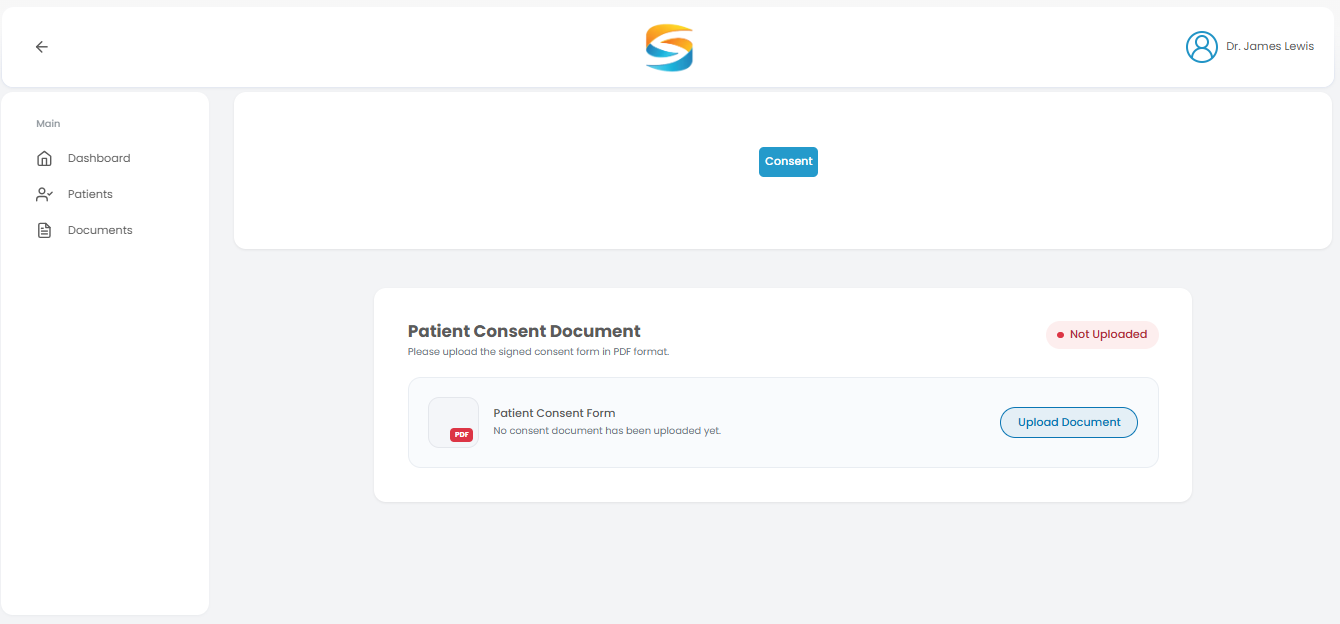
⚠️ Important: You cannot access other tabs until the consent document is uploaded.

Consent tab locked indicator

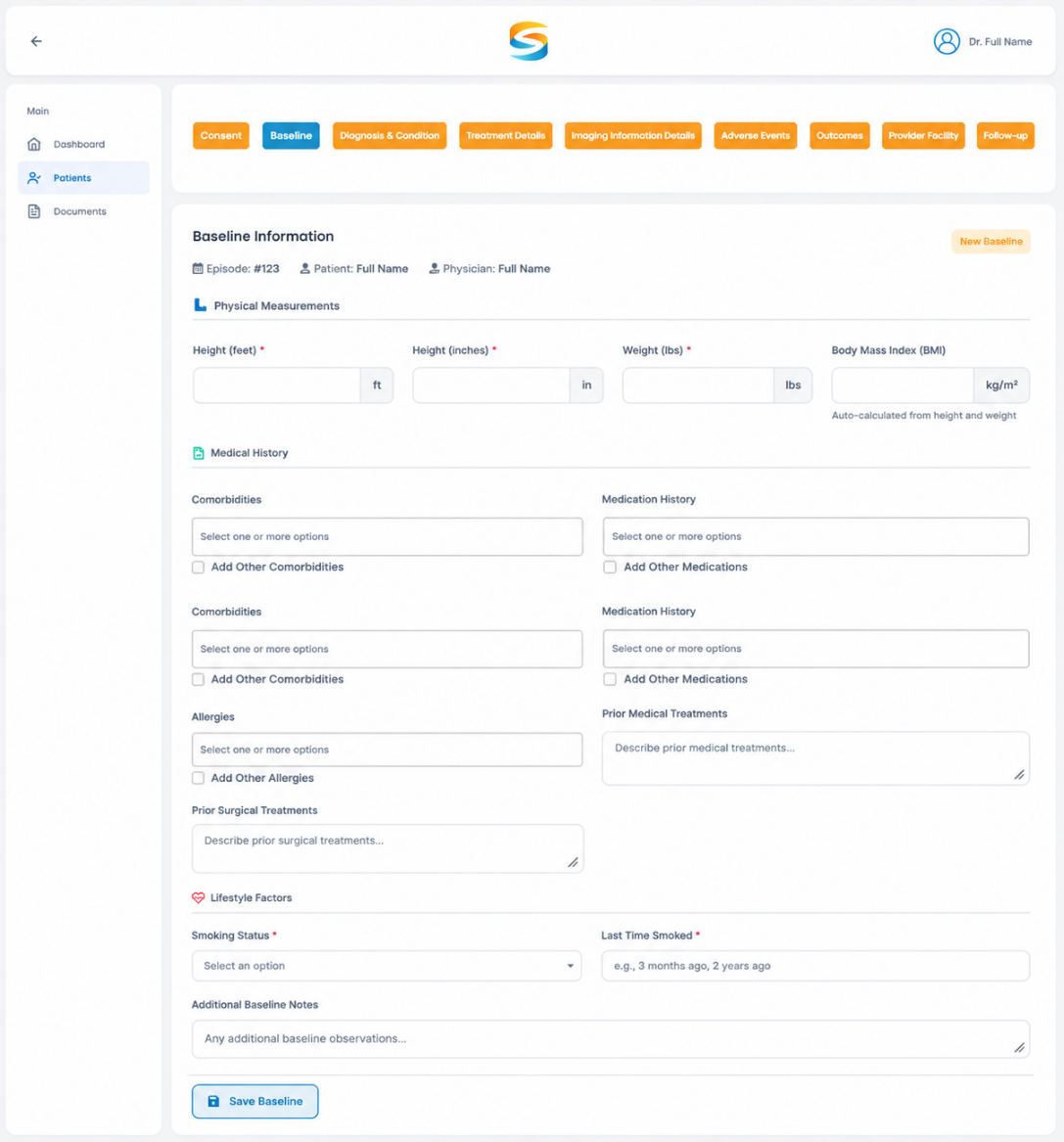
7.2 Tab 2: Baseline Information

Overview: Enter the patient's baseline clinical data.

Sections and Fields:

SectionInformation Collected
Physical MeasurementsHeight (Feet/Inches), Weight (lbs.), BMI (auto-calculated)
Medical HistoryComorbidities, Allergies, Prior Surgical Treatments, Smoking Status, Additional Notes
Medication HistoryCurrent Medications, Prior Medical Treatments
Baseline Information form with all sections

Steps:

  1. Fill in all baseline fields
  2. Click Save Baseline
Save Baseline button

✅ After saving, the system stores this information and unlocks the next tab.

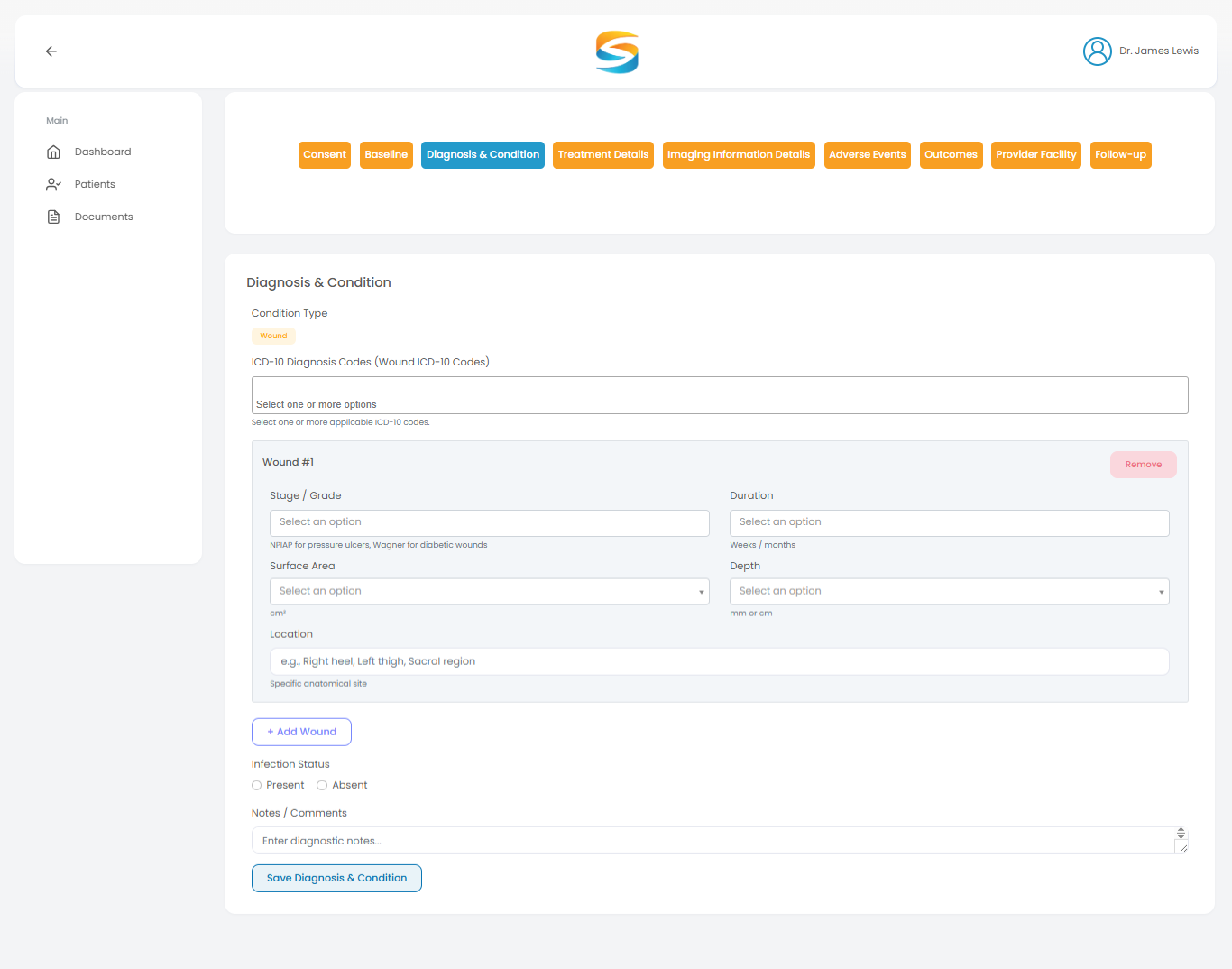
7.3 Tab 3: Diagnosis & Condition

Overview: Add diagnosis details. Available fields depend on the Study Focus (Pain / Orthopedic / Wound Healing) selected during case creation.

Fields:

FieldDescription
Condition TypePrimary diagnosis
ICD-10 Diagnosis CodesStandard diagnosis codes
Infection StatusPresent or Absent
Pain TypeSelect from options (for Pain study focus)
Baseline Pain ScoreVAS or NRS score 0-10 (for Pain study focus)
Notes / CommentsAdditional diagnostic notes
Diagnosis & Condition form with fields

Steps:

  1. Fill in all diagnosis fields
  2. Click Save Diagnosis & Condition
Save Diagnosis & Condition button

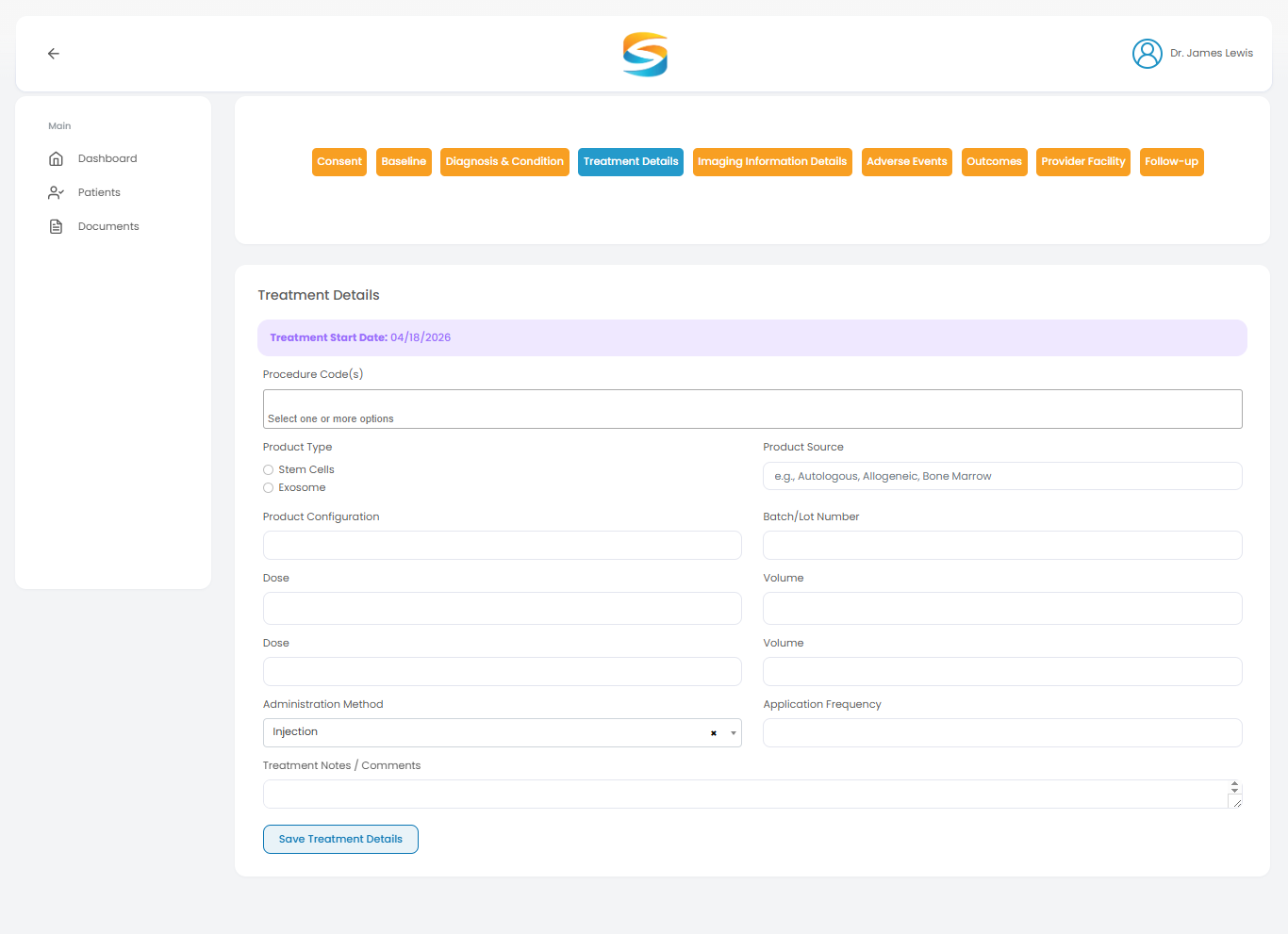
7.4 Tab 4: Treatment Details

Overview: Enter treatment information. This section triggers follow-up creation.

Fields:

FieldDescription
Treatment Start DateDate treatment began (critical for follow-ups)
Procedure Code(s)Medical procedure codes
Product Typee.g., Stem Cells, Exosomes
Product Sourcee.g., Autologous, Allogeneic
Batch/Lot NumberProduct identifier
DoseAmount administered
VolumeVolume of product
Administration Methode.g., Injection, Topical
Application FrequencyHow often is treatment applied?
Treatment Notes / CommentsAdditional notes

Steps:

  1. Fill in all treatment fields
  2. Click Save Treatment Details
Treatment Details form with all fields

⚠️ Critical Logic:

  • If Treatment Start Date is entered → Follow-ups are created instantly
  • If NOT entered → Follow-ups are created after saving this page

✅ After saving, follow-ups are created automatically.

7.5 Tab 5: Imaging Information

Overview: Upload imaging files and add findings.

Sections and Fields:

SectionInformation
Type of ImagingSelect imaging modality (e.g., MRI, CT, X-ray, Ultrasound)
TimingBaseline, Week 4, Week 8, or Week 12
Upload Imaging FilesUpload imaging files (PDF, DICOM, JPG, PNG)
FindingsEnter text OR upload findings document
Standardized ScoringEnter text OR upload scoring document
Additional NotesOptional clinical comments

Steps:

  1. Select Type of Imaging and Timing
  2. Upload imaging files (multiple files may be allowed)
  3. Enter findings as text OR upload a document
  4. Enter scoring as text OR upload a document (optional)
  5. Click Save Imaging Information
Imaging Information form

7.6 Tab 6: Adverse Events

Overview: Record any adverse events. The risk categories shown are based on the study's focus.

Fields:

FieldDescription
Adverse Event DescriptionDescribe the event, symptoms, onset, and progression
SeveritySelect severity level (Mild / Moderate / Severe)
Timinge.g., within 24h, 7 days post-treatment
CausalityRelationship to treatment (e.g., Related, Unrelated, Unknown)
OutcomesDescribe resolution and interventions
Specific Risk CategorySelect relevant risk categories from the dropdown
Additional Custom RiskEnter any risk not listed

Steps:

  1. Fill in all adverse event fields
  2. Click Save Adverse Events
Adverse Events form with all fields

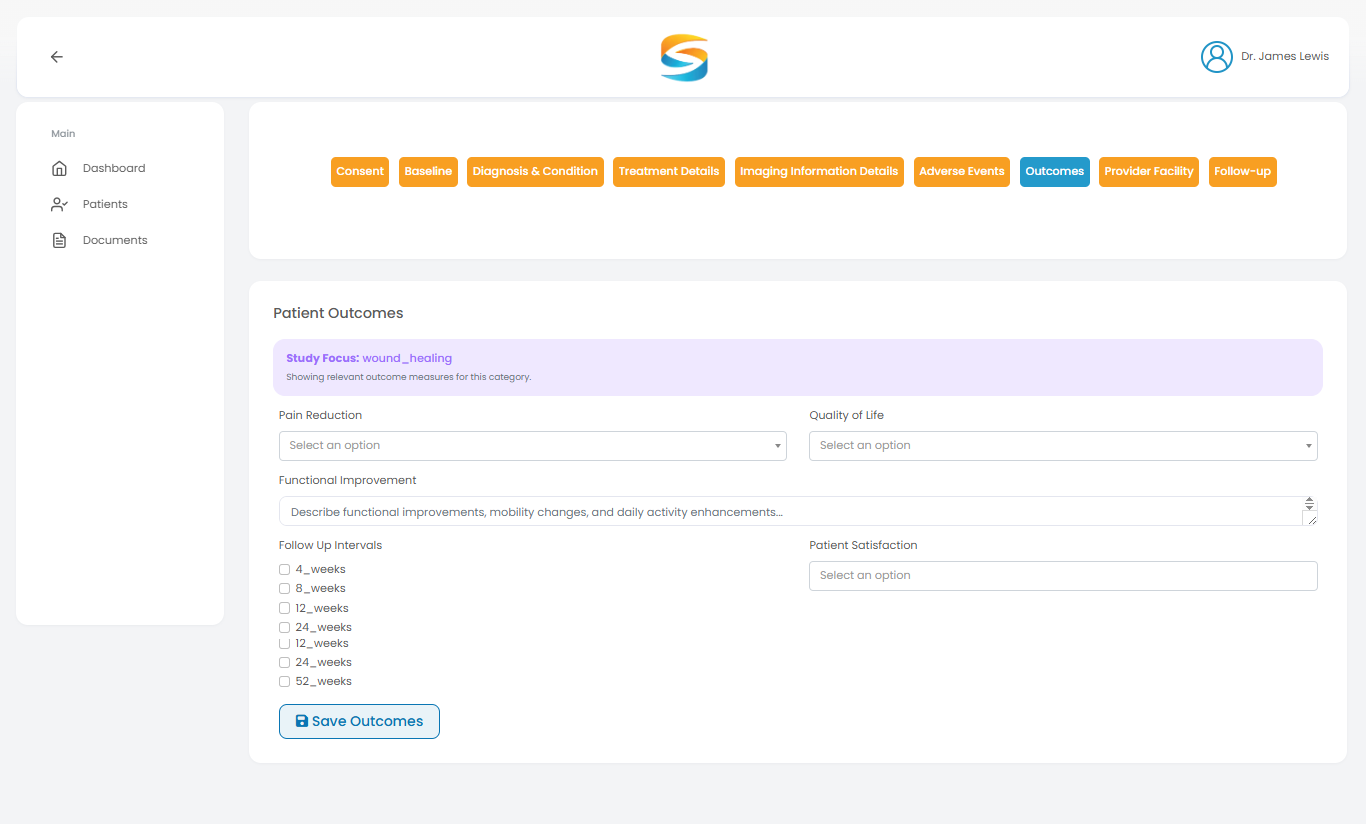
7.7 Tab 7: Outcomes

Overview: Enter treatment outcomes. Outcome measures are based on the study focus.

Fields:

FieldDescription
Pain ReductionPercentage of pain reduction (e.g., 0%, 25%, 50%, 75%, 100%)
Quality of LifePatient-reported quality of life change (e.g., Much Worse to Much Better)
Functional ImprovementDescribe improvements in function (free text)
Follow-Up IntervalsSelect applicable intervals (4, 8, 12, 24, 52 weeks)

Steps:

  1. Select Pain Reduction percentage
  2. Select Quality of Life change
  3. Enter Functional Improvement description
  4. Select Follow Up Intervals that apply
  5. Click Save Outcomes
Outcomes form with fields

7.8 Tab 8: Provider & Facility

Overview: Enter treatment facility and physician training information.

Sections and Fields:

SectionInformation Collected
Treatment FacilityClinic, City, State, Country, ZIP, FDA information, cGMP Certification, Consent Document, Additional Notes
Physician Training DocumentationUpload training documents (PDF, DOCX)

Buttons:

ButtonAction
ResetClear unsaved changes
Save Provider & Facility InformationSave all data

Steps:

  1. Fill in all facility fields (some may be auto-filled from your clinic profile)
  2. Upload training documentation
  3. Click Save Provider & Facility Information
Provider & Facility form with fields

7.9 Tab 9: Follow-Up

Overview: View follow-up schedules, track patient progress, and manually create or modify follow-up dates. This tab is where you manage all follow-up activities after treatment has started.

Follow-Up Table Displays:

ColumnDescription
#Follow-up number
SCHEDULED DATEDate follow-up was created (original or manually set)
DUE DATEScheduled Date + 3 days
STUDY FOCUSPain / Orthopedic / Wound Healing
STATUSScheduled / Completed / Late / Missed
COMPLETED ATDate and time of submission (if completed)
ACTIONView Questionnaire button (when completed)
Follow-Up table with all columns populated

Available Actions:

ActionDescription
Create ScheduleManually create a new follow-up (overrides automatic schedule)
View QuestionnaireView patient responses (for completed follow-ups only)
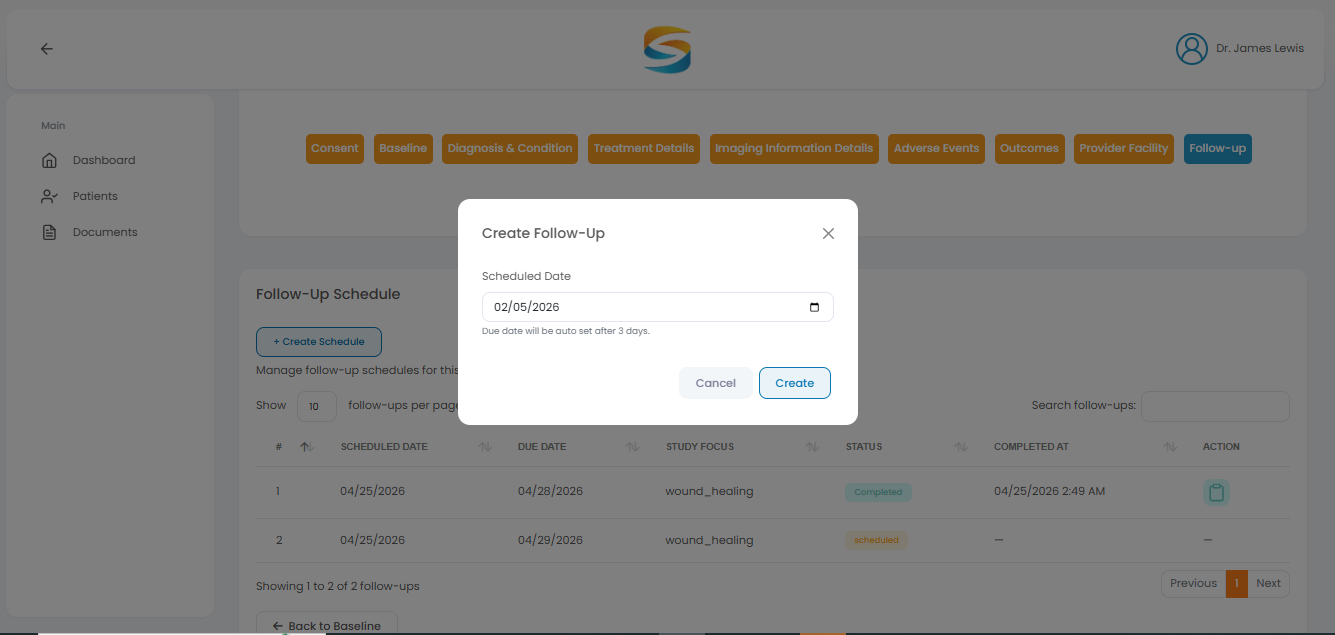
How to Manually Create a Follow-Up (Override Automatic Schedule)

Steps:

StepAction
1Click the Create Schedule button
2Enter the new Follow-Up Date
3Add clinical notes (optional)
4Click Save
Create Schedule button
Manual follow-up date entry

Manually update the follow up:

Manual follow-up update form

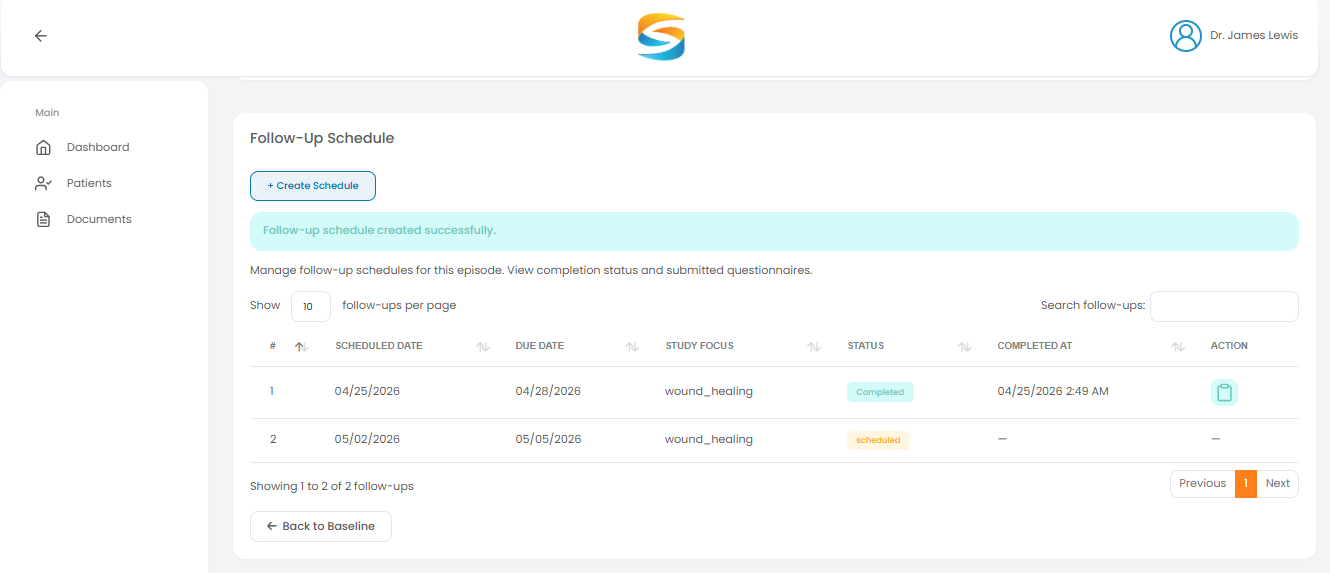
System Behavior When You Manually Create a Follow-Up:

StepAction
1System checks for any existing automatic schedule.
2The system creates your new manual follow-up with your selected date.
3The system removes or replaces the original automatic schedule.
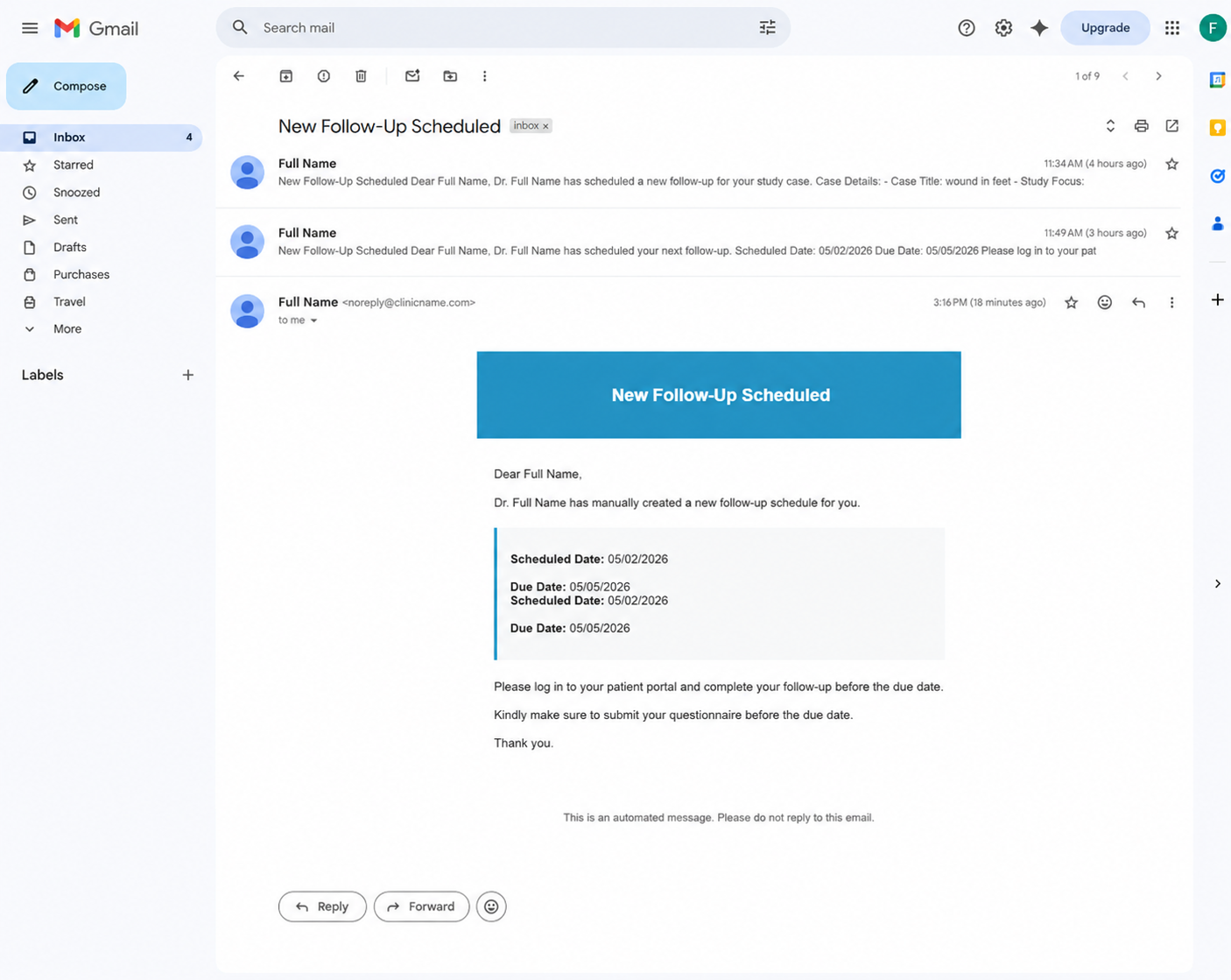
4System sends Email to patient: "New follow-up scheduled."
5System updates the Follow-Up table to show only your manual schedule.
Follow-Up table showing manual schedule override
How to View Completed Questionnaires

Steps:

  1. Find the completed follow-up in the table (STATUS = "Completed")
  2. Click the View Questionnaire button
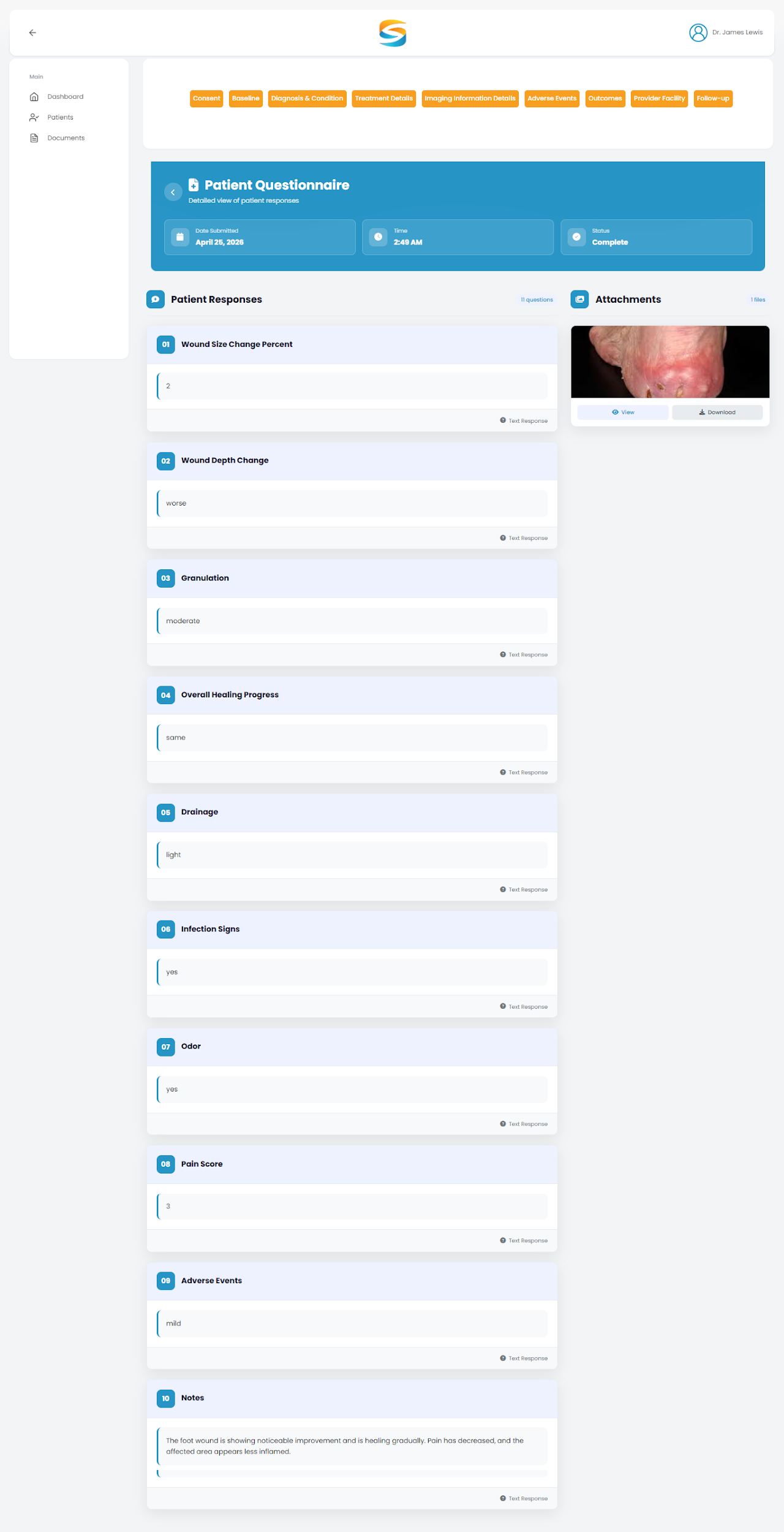
  3. Review all patient responses
Completed follow-up with View Questionnaire button

Submitted Questionnaire:

Submitted questionnaire view

How to View and Edit Data Across All Tabs

To view data:

  • Click any tab (1-9) to see saved information

To edit data:

  1. Click the tab you want to edit
  2. Update the fields
  3. Click Save at the bottom of the page

Quick Troubleshooting for Case Workflow

IssueSolution
Cannot access other tabsComplete Tab 1 (Consent) first.
Cannot view questionnairePatient has not completed follow-up yet.
Follow-ups not creatingVerify Treatment Start Date is entered in Tab 4
Need to change follow-up dateGo to Tab 9 (Follow-Up) and click Create Schedule.

Email Notifications – Image Placement Guide

The following emails are triggered during the case workflow. Each email template should be documented with screenshots.

Email #1: Follow-Up Ready (Sent to Patient)

Trigger: When a follow-up is created (automatically or manually)

Follow-up ready email sent to patient

Email #2: Questionnaire Completed (Sent to Doctor)

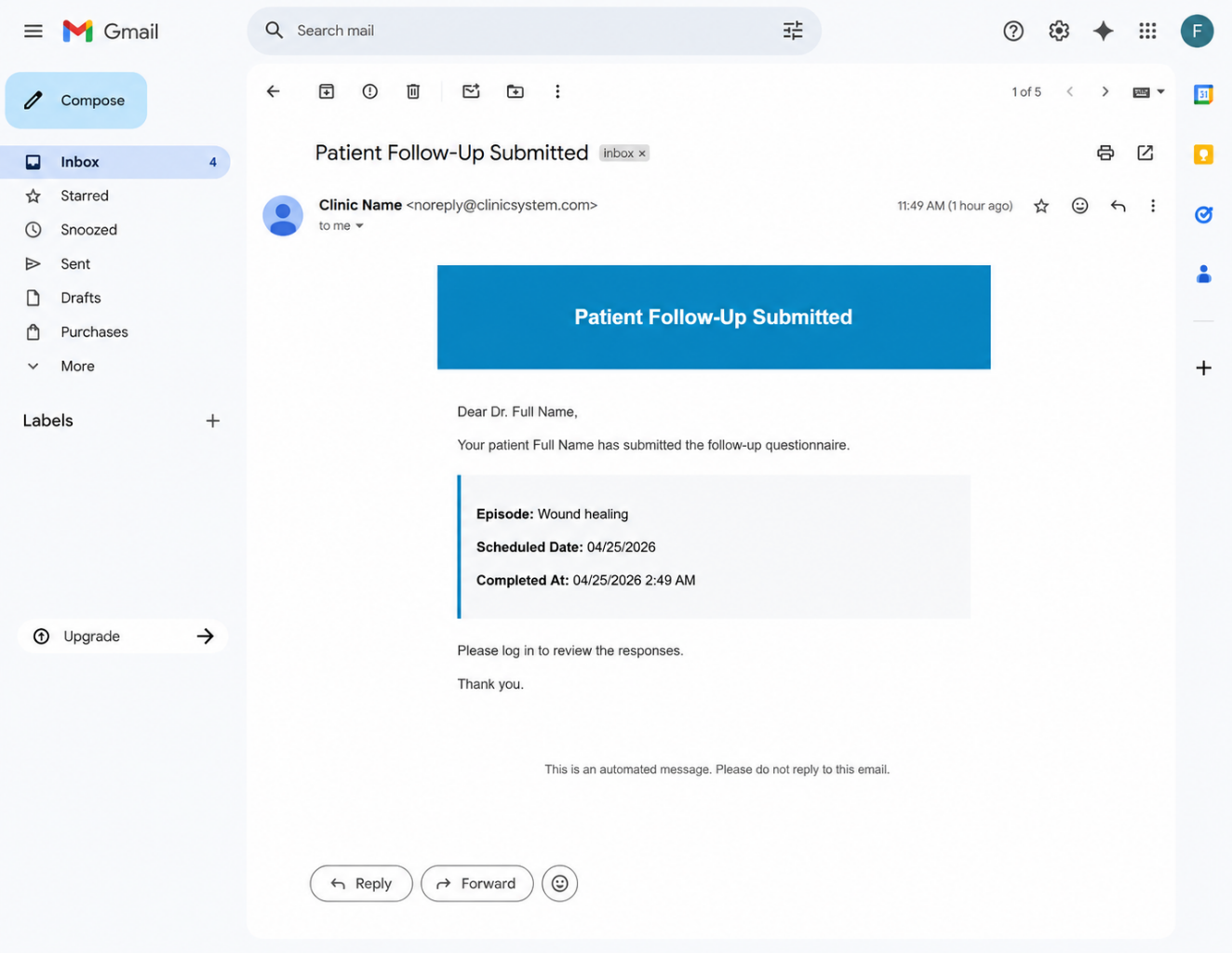
Trigger: When the patient submits the completed questionnaire

Questionnaire completed notification sent to doctor

8. Documents Module

8.1 Overview

The Documents page allows you to access important clinic-related files.

Actions available:

ActionDescription
View all available clinic documentsSee the document library.
Download required filesSave documents locally
Access official clinical formsRetrieve necessary forms

8.2 Document Visibility Rules

🔒 Important: You can only see documents assigned to your clinic by the distributor.

This means:

  • Each clinic has its own document library
  • Doctors from other clinics cannot access these documents
  • If a distributor uploads documents, they appear in your Documents section

8.3 Types of Documents Available

Document TypeFormat
Patient Consent FormsPDF
Study Protocol DocumentsDOCX / PDF
Distributor-uploaded filesVarious formats
Other official clinic documentsPDF, DOCX

8.4 How to Access Documents

Steps:

  1. From the left sidebar, click Documents
  2. Browse the list of available documents
  3. Click Download (⬇️ icon) next to any document to save it to your computer
Navigation to Documents in sidebar
Documents section with downloadable files

📌 Important Notes: All documents are secure and tracked. Always download the latest version before use.