Clinic Registration
The Clinic Registration page allows licensed medical professionals or certified research facilities to apply to join the CSR Clinical Research Network.
To begin registration:
- Go to the CSR website homepage.
- Click the Apply button located at the top-right corner.
- The Clinic Registration form will open.
Before registering, applicants must ensure that they:
- Operate in Sexual Wellness, Wound Healing, Aesthetics, Hair Regeneration, or Orthopedics.
- Are licensed medical professionals or part of a certified research facility.
- Can perform required procedures (IV, IM, IA, etc.).
- Agree to share de-identified clinical data for research purposes.
If eligible, proceed with the registration form.
01) Required Information
All fields marked with (*) are mandatory.
Personal and Clinic Information
- Main (Voice) Phone Number (with country code)
- Text (SMS) Number (with country code)
Important: Email addresses must match.
Location Information
- State (Dropdown or manual entry if not listed)
- City (Dropdown or manual entry if not listed)
- Street Address (Google autocomplete supported)
- Address Line 2 (Optional)
If your state or city is not available in the dropdown, you may manually enter it.
Study Focus
Select at least one of the following:
- Wound Healing
- Other (must specify if selected)
Procedures Capability
Select all procedures your clinic can perform:
- Periarticular Injection (PAI)
Ultrasound
Select:
This field is required.
02) Form Validation
The form can only be submitted when:
- All required fields are completed
- Required selections are made
- The form passes validation
Incomplete forms cannot be submitted.
03) After Submission
Once you submit the registration:
- Your application is securely recorded in the system.
- Your clinic status is automatically set to:
Pending / Under Review
At this stage:
- CSR admin team reviews your application.
- Your eligibility, capabilities, and compliance are verified.
04) Application Review & Status Flow
Your application will go through the following stages:
01) Pending
Application submitted and awaiting review.
02) Under Review
CSR team is reviewing your clinic details.
03) Interview Schedulingg
If required, you will receive an email with a scheduling link to book an interview session.
During the interview:
- Clinic capabilities are discussed.
- Compliance requirements are reviewed.
- Questions may be asked regarding procedures and study focus.
04) Approved or Rejected
If approved:
- You proceed to agreement signing.
- Your clinic status moves toward activation.
If rejected:
- You may receive communication with reasons or next steps.
05) Emails You Will Receive
Application Confirmation (if enabled)
You may receive an email confirming your application has been received.
Interview Scheduling Email
If applicable, you will receive a scheduling link to book your interview session.
Agreement Signing Email
Once approved, you will receive an email with a secure link to sign the clinic agreement electronically.
You must sign the agreement to proceed.
Clinic Approval & Password Setup Email
After the agreement is signed and your clinic is officially approved, you will receive:
A “Set Your Password” link.
Using this link, you will:
- Create your secure password.
- Activate your clinic account.
 The password link may expire for security reasons.
Activation Confirmation
After setting your password:
- Your clinic account becomes Active.
- You are now authorized to log in.
06) Accessing the Clinic Dashboard
After approval and password setup:
- Go to the Login page.
- Enter your registered email address.
- Enter the password you created.
- Click Login.
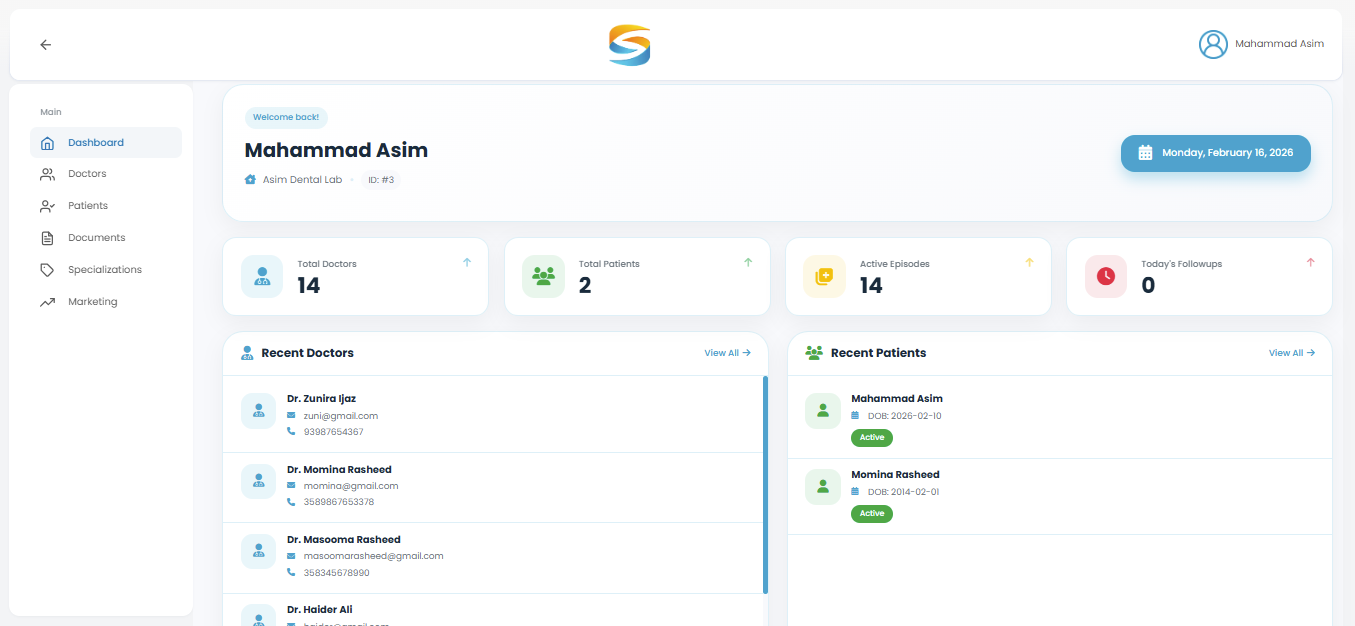
You will then access your Clinic Dashboard.
Important Notes
Application review is mandatory before activation, Agreement signing is required for account approval, Dashboard access is only available after password setup, Ensure your email address is correct and accessible, Incomplete or inaccurate information may delay approval.