NWOL IRB Intake Portal

NWOL Portal User Guide

1. Account Registration & Welcome Email

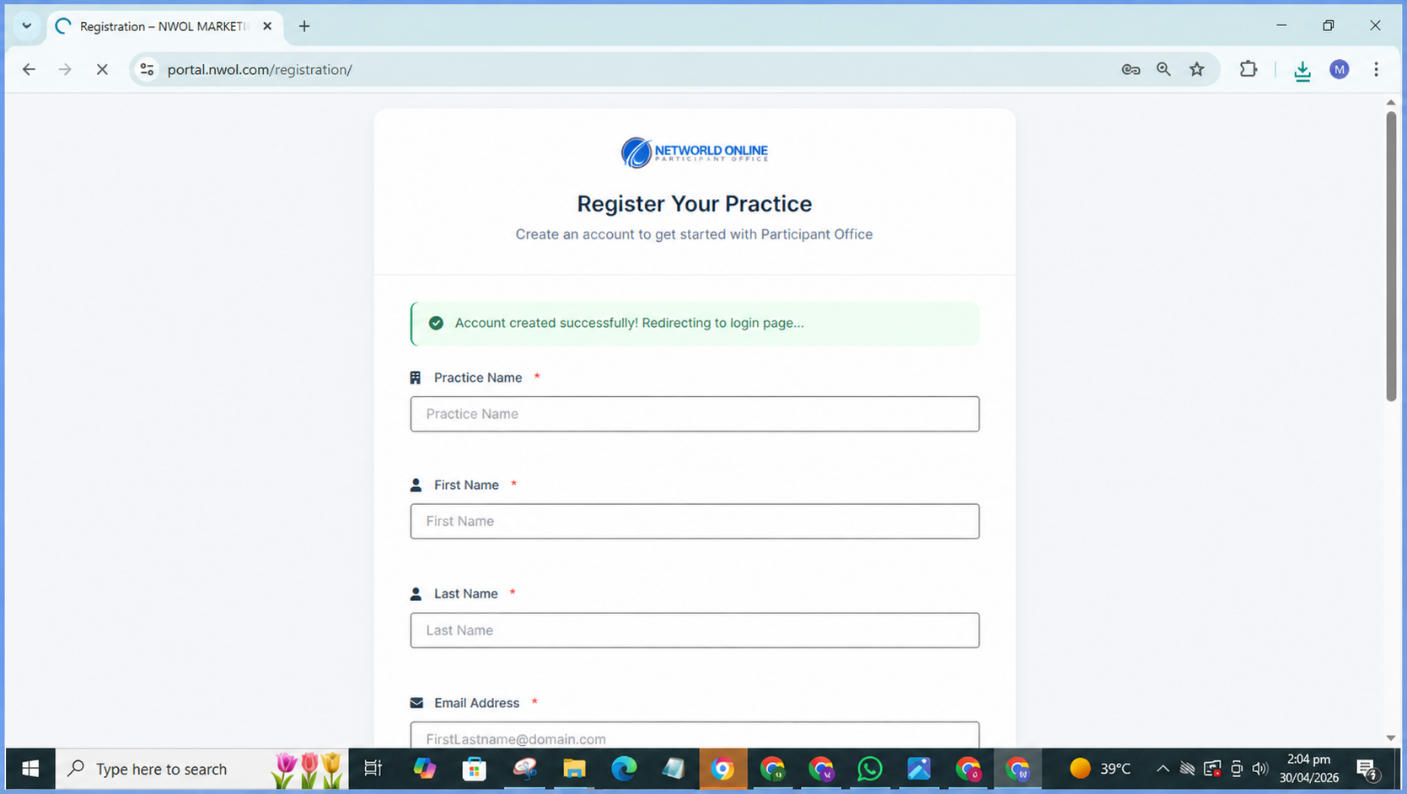
Before accessing the NWOL IRB Intake system, you must register your practice at https://portal.nwol.com/.

NWOL Portal Registration Page

How to Register Your Account

  1. Go to https://portal.nwol.com/
  2. Click Register Your Practice (below the Sign In button)
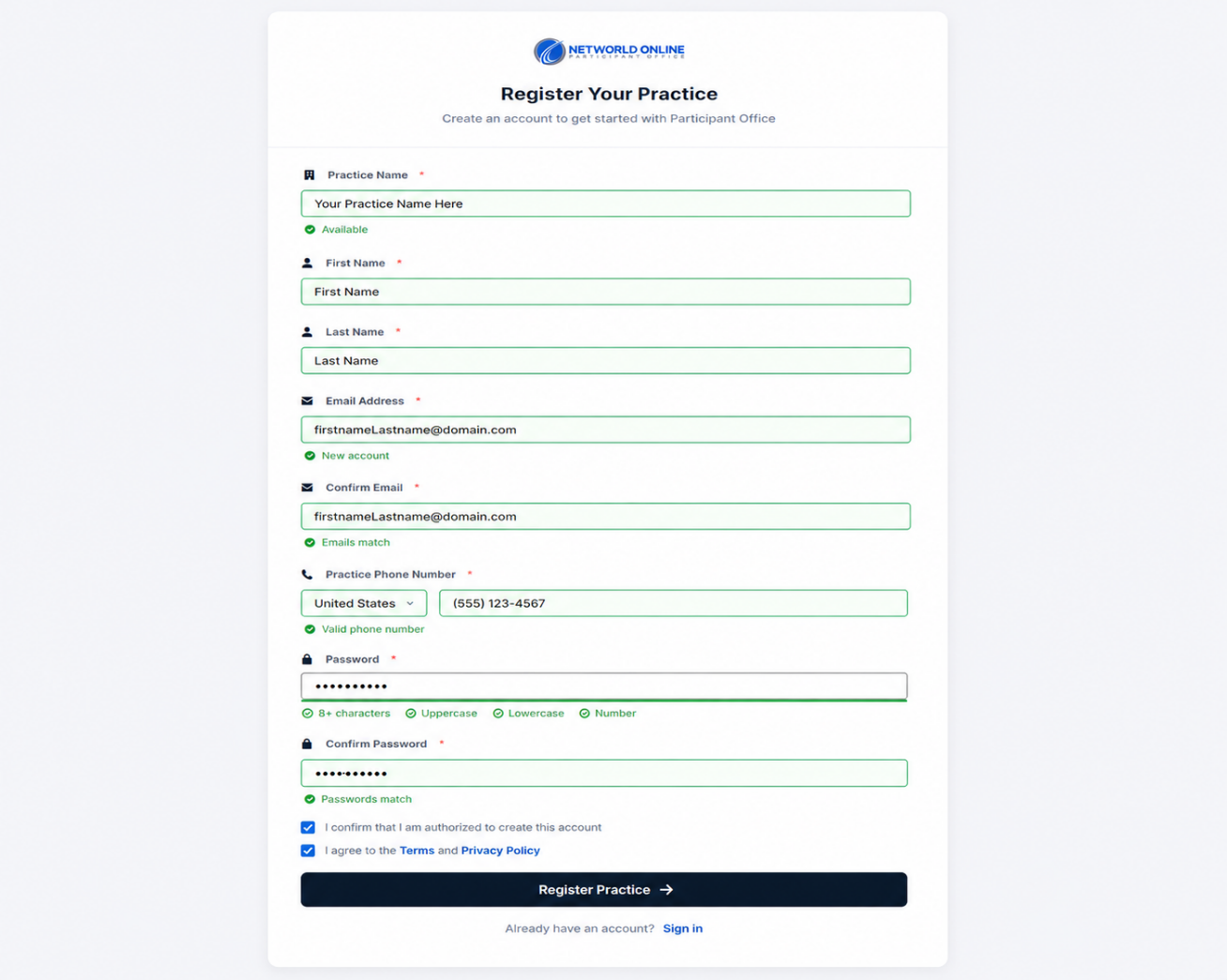
  3. Fill in all required registration fields
  4. Click Register Practice
  5. Wait for the confirmation message: "Account created successfully! Redirecting to the login page…"
Registration Fields with all required fields marked

Registration Fields

FieldDescriptionRequired
Practice NameYour clinic's legal name (e.g., Sunrise Family Clinic LLC)✅ Yes
First NameYour first name✅ Yes
Last NameYour last name✅ Yes
Email AddressValid email address (e.g., michaeljohnson@email.com)✅ Yes
Confirm EmailRe-enter email address✅ Yes
Practice PhoneClinic phone number (e.g., 214-555-7890)✅ Yes
PasswordStrong password (8+ chars, uppercase, lowercase, number)✅ Yes
Confirm PasswordRe-enter password✅ Yes
I confirm authorizationCheckbox to confirm authorization✅ Yes
I agree to Terms & PrivacyCheckbox for Terms & Privacy✅ Yes

What Happens After Registration

StepWhoAction
1SystemCreates your account
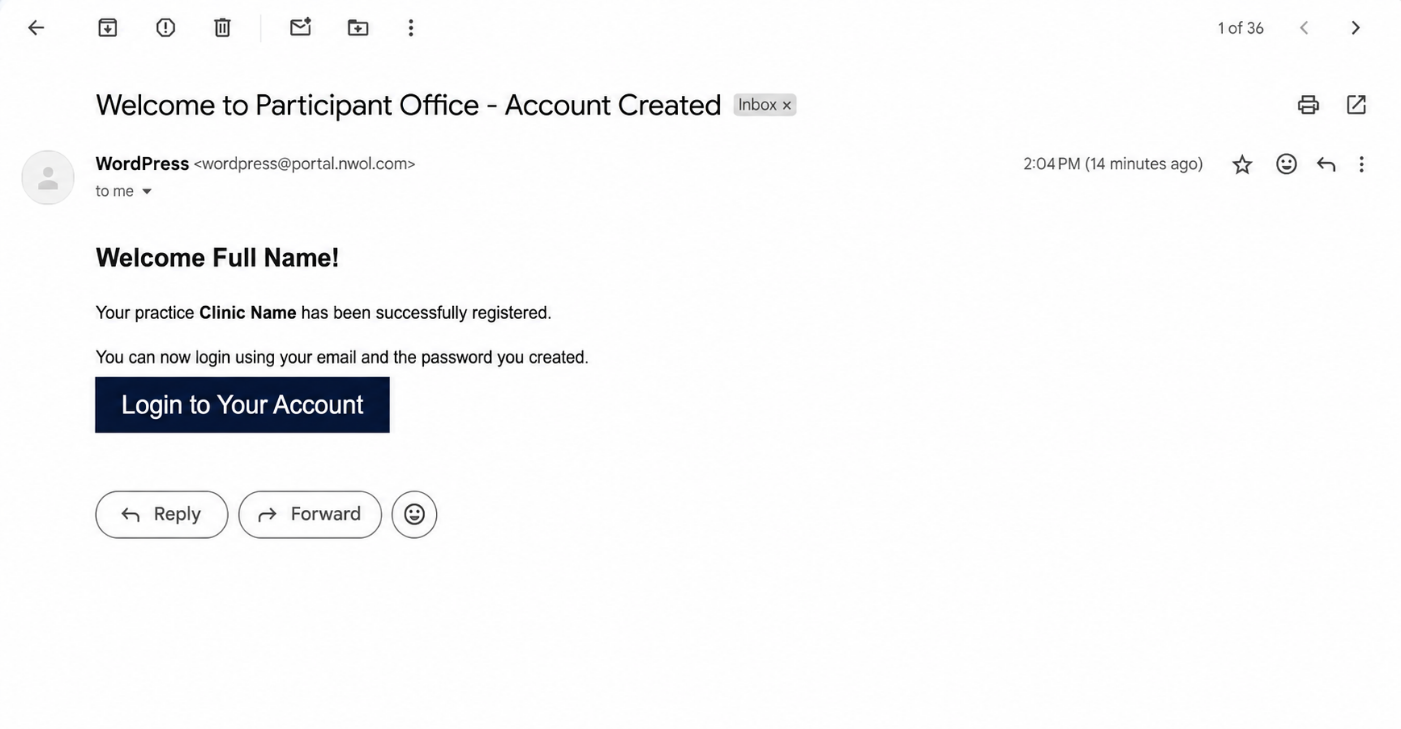
2SystemSends welcome email to your registered address
3SystemRedirects you to the login page
Welcome email with account details

✅ Result: Your account is now created and you will receive a welcome email.

2. Login Process

Overview: After registration, log in to the portal using your registered credentials.

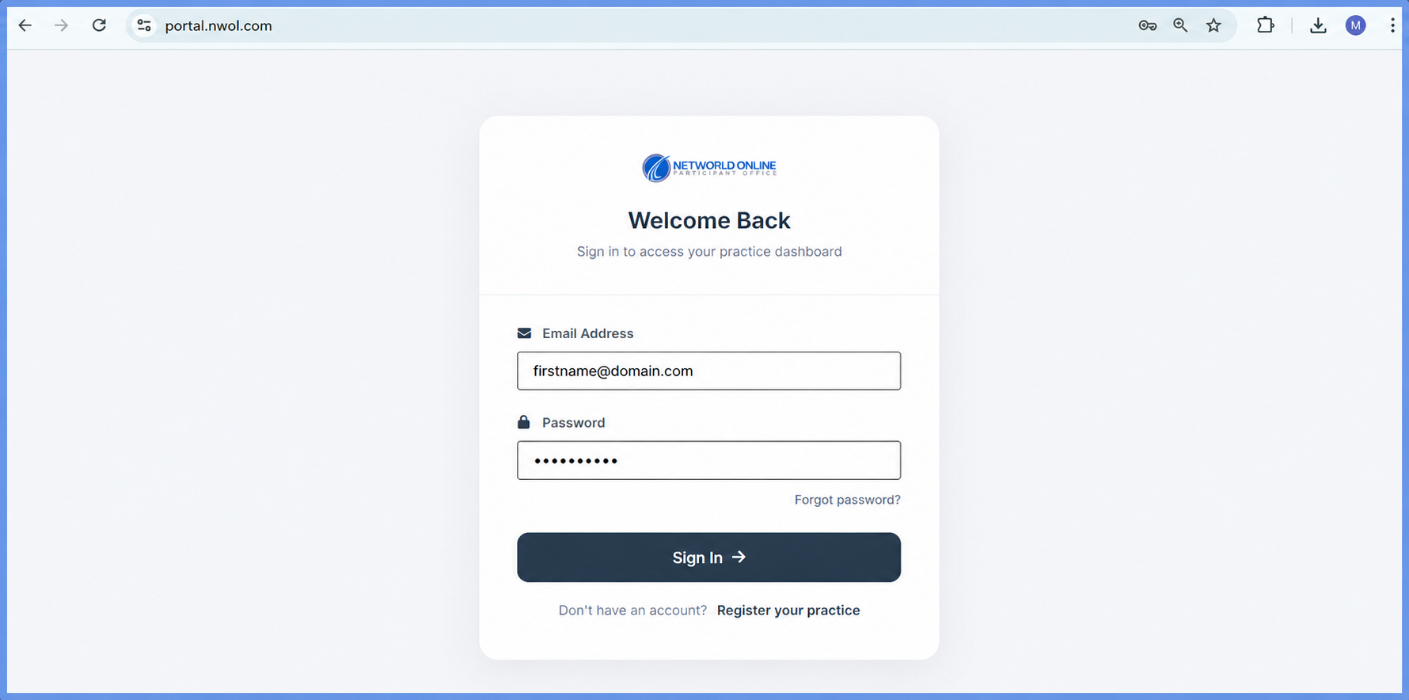
NWOL Portal Sign In Page

Login Steps

  1. Go to https://portal.nwol.com/
  2. Enter your Email Address
  3. Enter your Password
  4. Click Sign In

💡 Tip: Forgot your password? Click the Forgot password? link to reset it via email.

✅ Result: You are redirected to the Dashboard.

3. Dashboard Overview

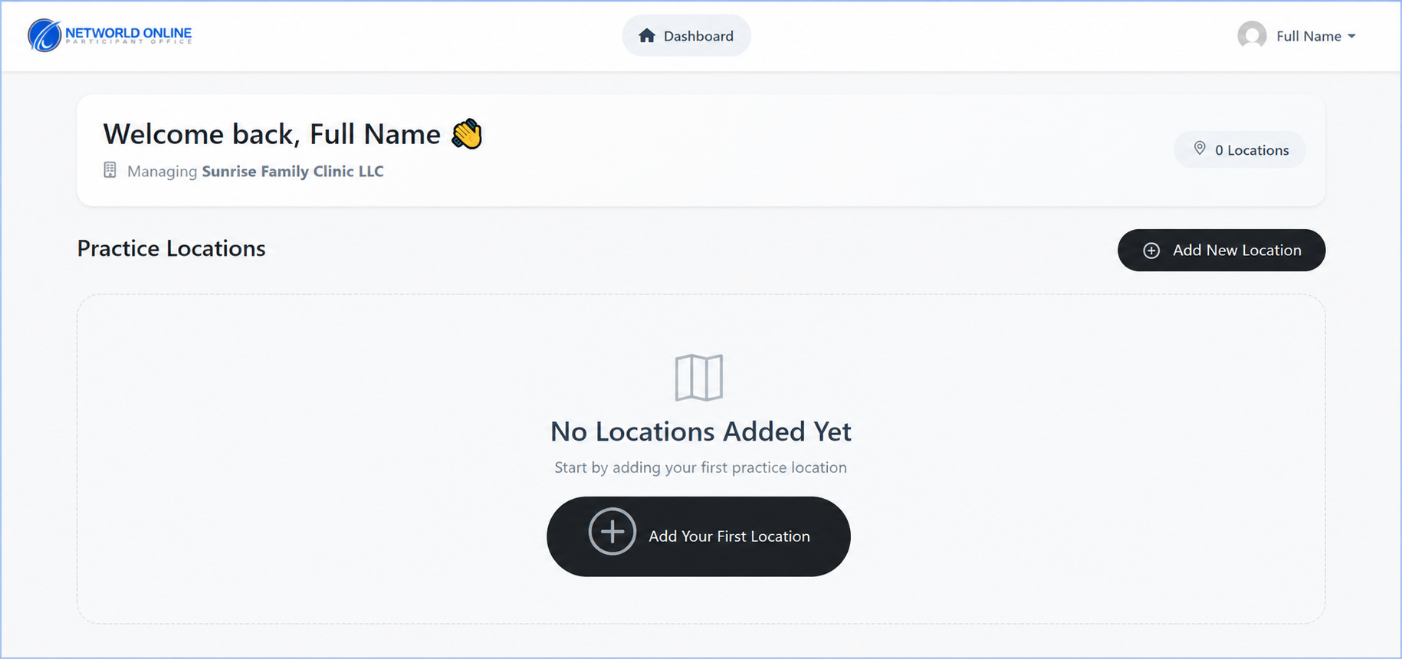
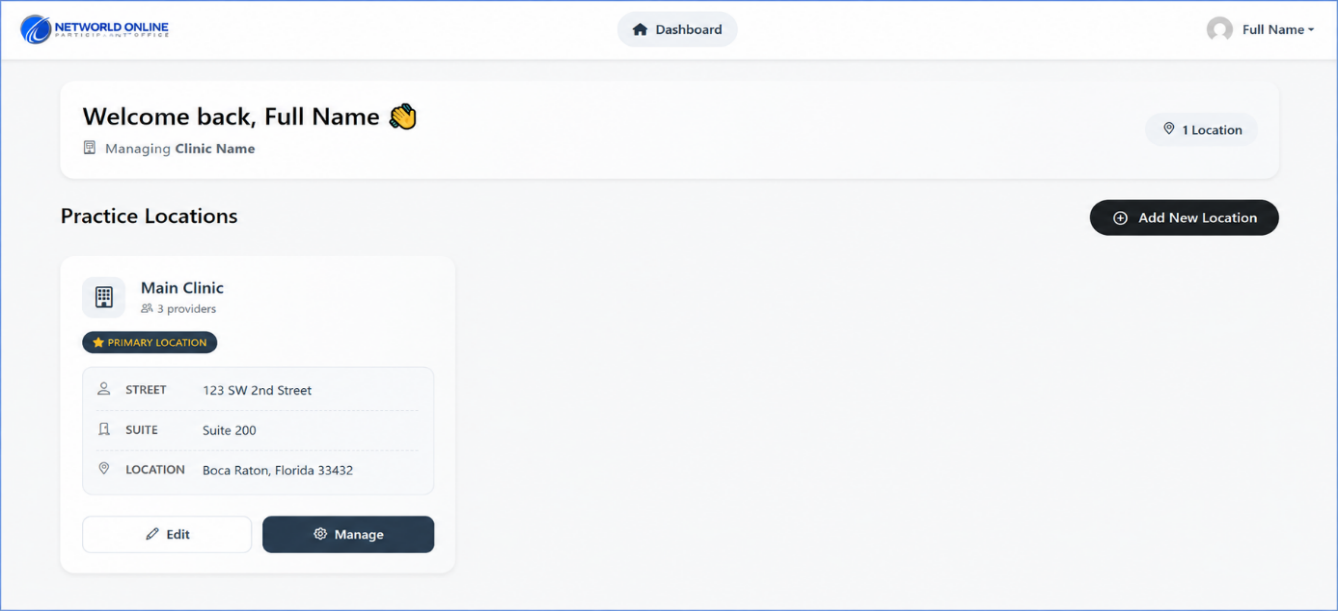
Overview: The Dashboard is the first page you see after logging in. It provides an overview of all your practice locations.

Dashboard Main Overview Page
SectionDescription
Welcome Message"Welcome back, [Your Name]."
Location CountTotal locations (e.g., "1 Location")
Practice NameYour registered practice name
Practice Locations CardList of all clinic locations with Manage / Edit buttons
Add New Location ButtonButton to add additional practice locations

4. Add New Location

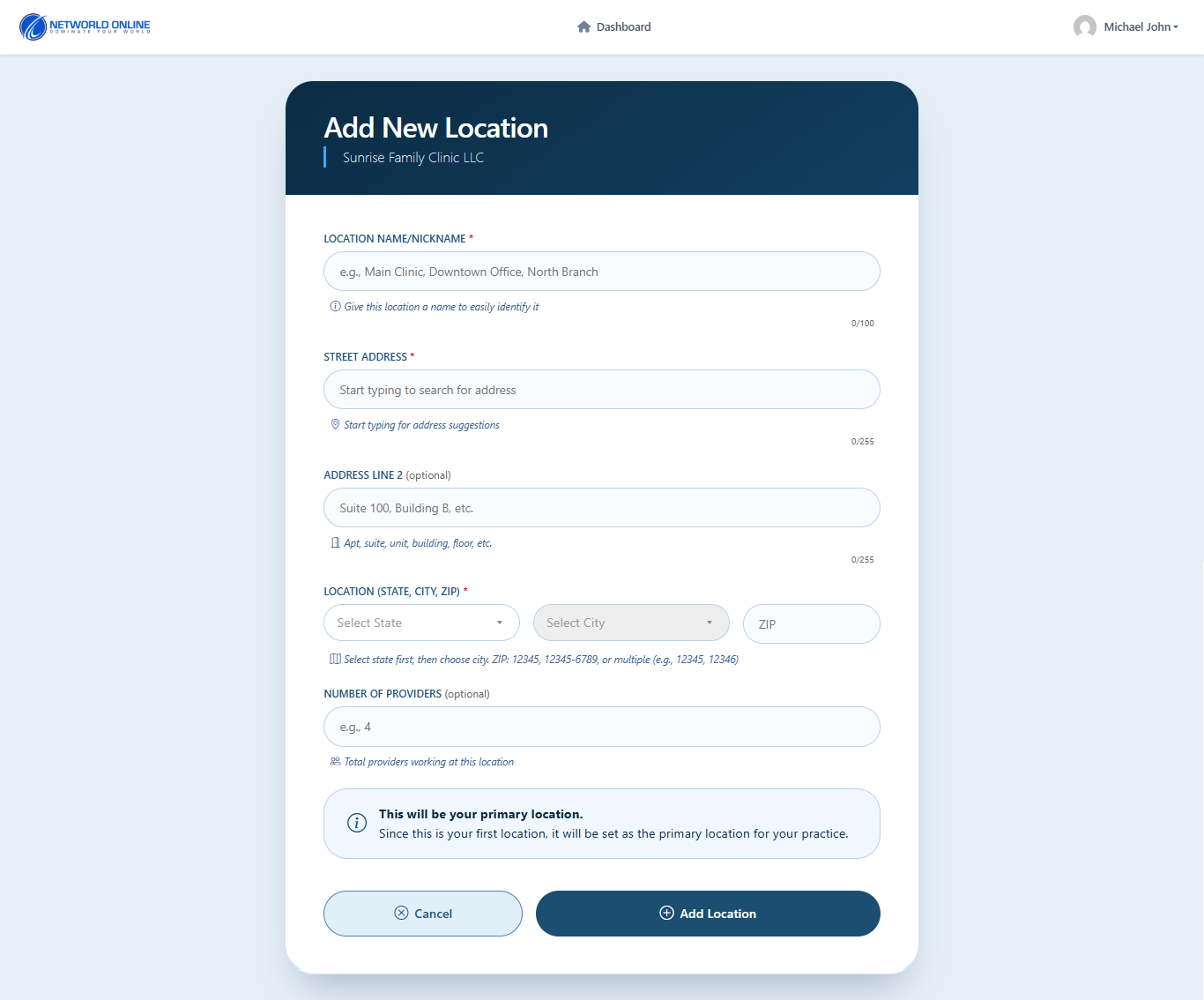
Overview: Before completing the IRB intake form, you must add your practice location.

How to Add a New Location

  1. From the Dashboard, click Add New Location
  2. Fill in all required location fields
  3. Click Add Location
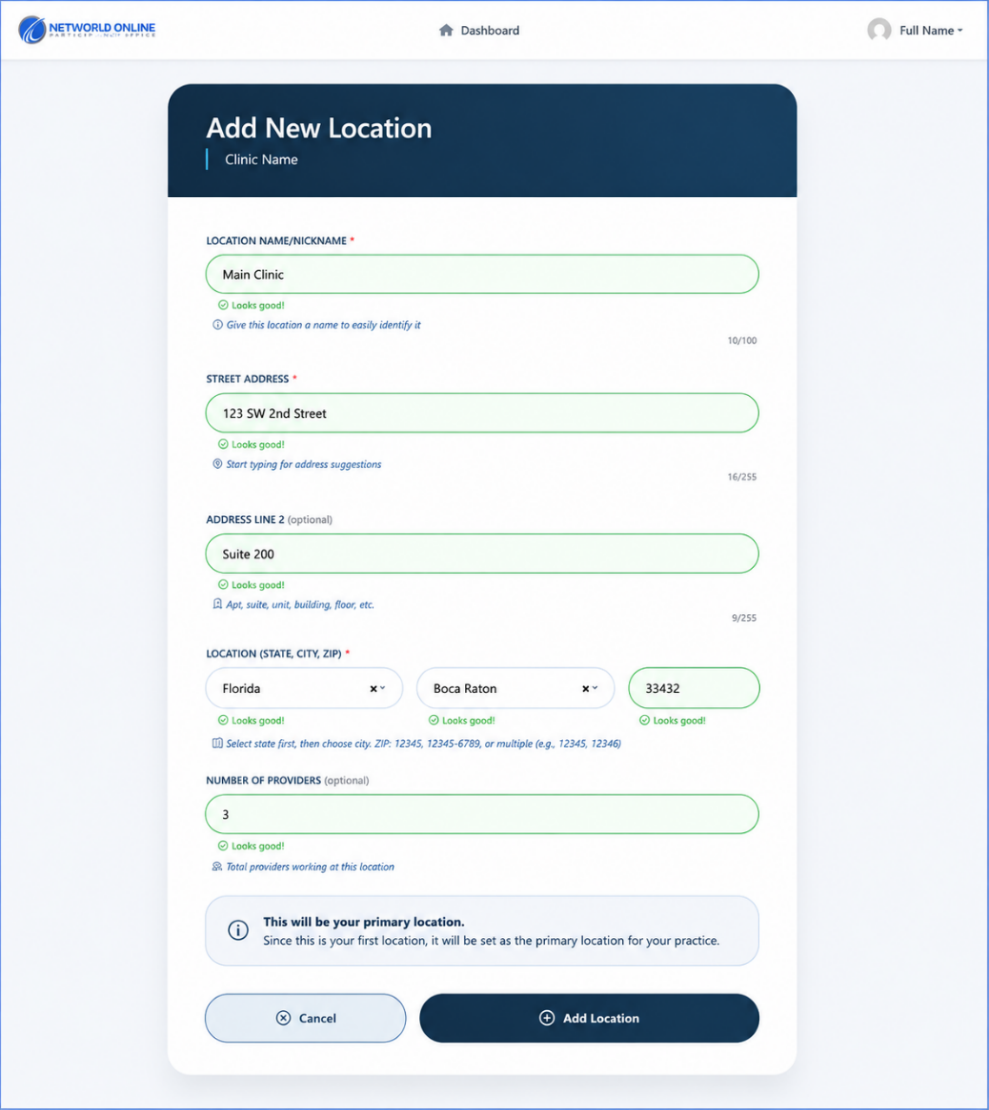
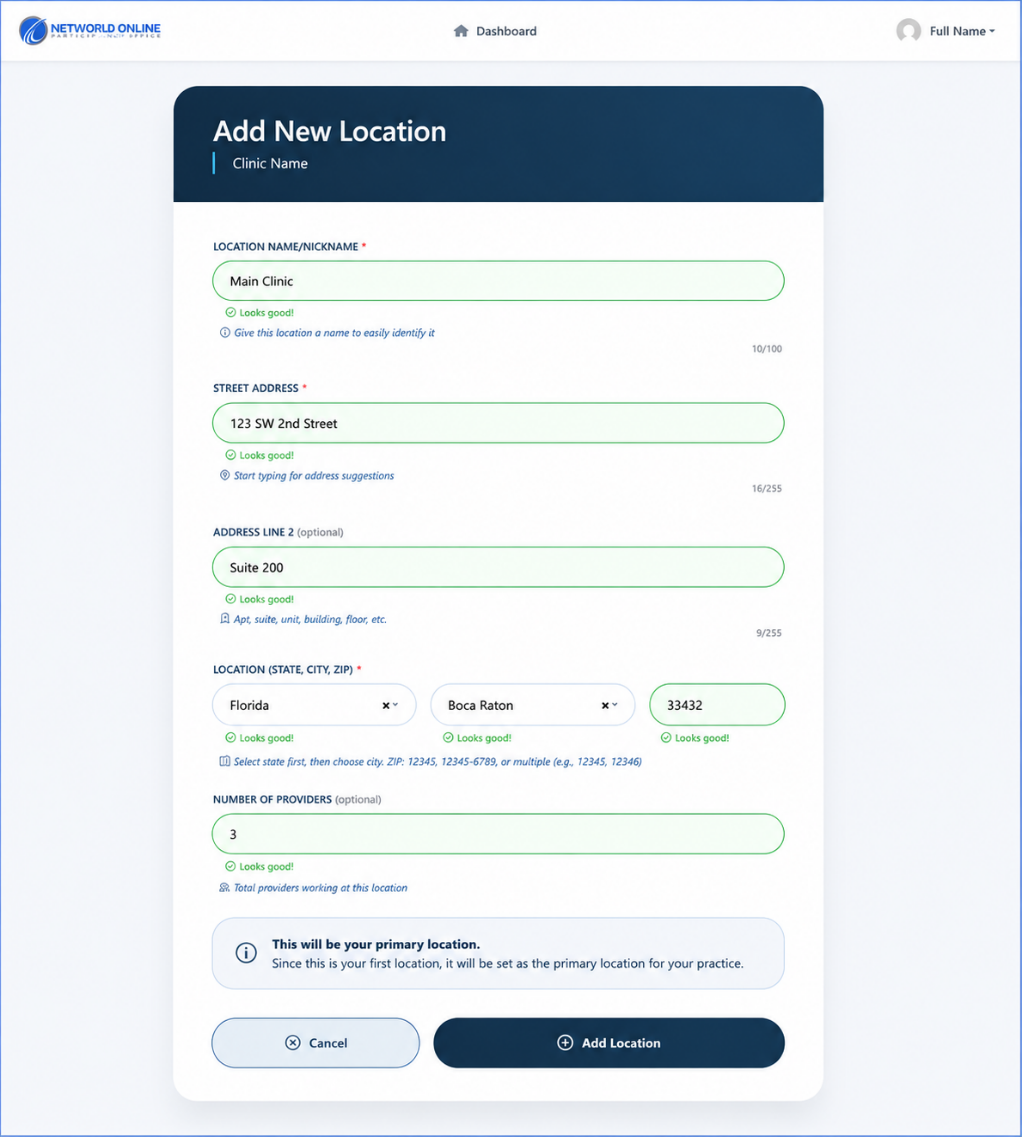
Add New Location Form Fields

Add New Location Fields

FieldRequiredDescriptionExample
Location Name/Nickname✅ YesName to identify this locationMain Clinic
Street Address✅ YesFull street address1234 Elm Street North
Address Line 2OptionalSuite, unit, buildingSuite 205
State, City, ZIP✅ YesSelect state → city → ZIPTexas → DALLAS → 75201
Number of ProvidersOptionalTotal providers at this location2

ℹ️ Note: The address field provides auto-suggest — start typing and select from the dropdown. The first location you add is automatically set as the Primary Location.

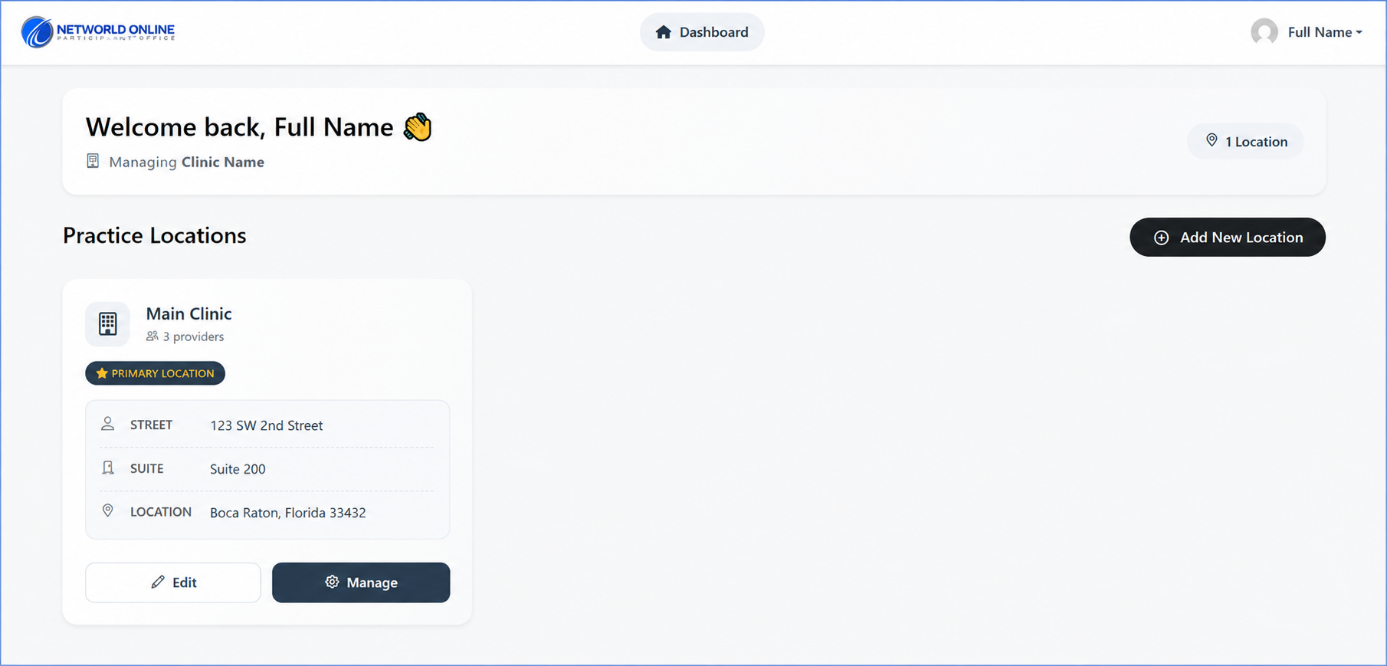
All Locations displayed on Dashboard

✅ Result: Location is saved and appears on your Dashboard.

5. Edit Location

Overview: You can edit location details at any time from the Dashboard.

Steps:

  1. From the Dashboard, click Edit on the location card
  2. Update any fields as needed
  3. Click Update Location
Edit Location Update Form

Editable Fields:

FieldDescription
Location Name/NicknameName to identify this location
Street AddressFull street address
Address Line 2Suite, unit, building, floor
State, City, ZIPSelect state, city, and ZIP code
Number of ProvidersTotal providers at this location
Set as Primary LocationCheckbox to designate as the primary location

✅ Result: Location information is updated and saved.

6. IRB Intake Form Overview

Overview: After adding a location, you can start the IRB Participant Intake form. This form defines your treatment programs and marketing strategy.

How to Access the IRB Intake Form

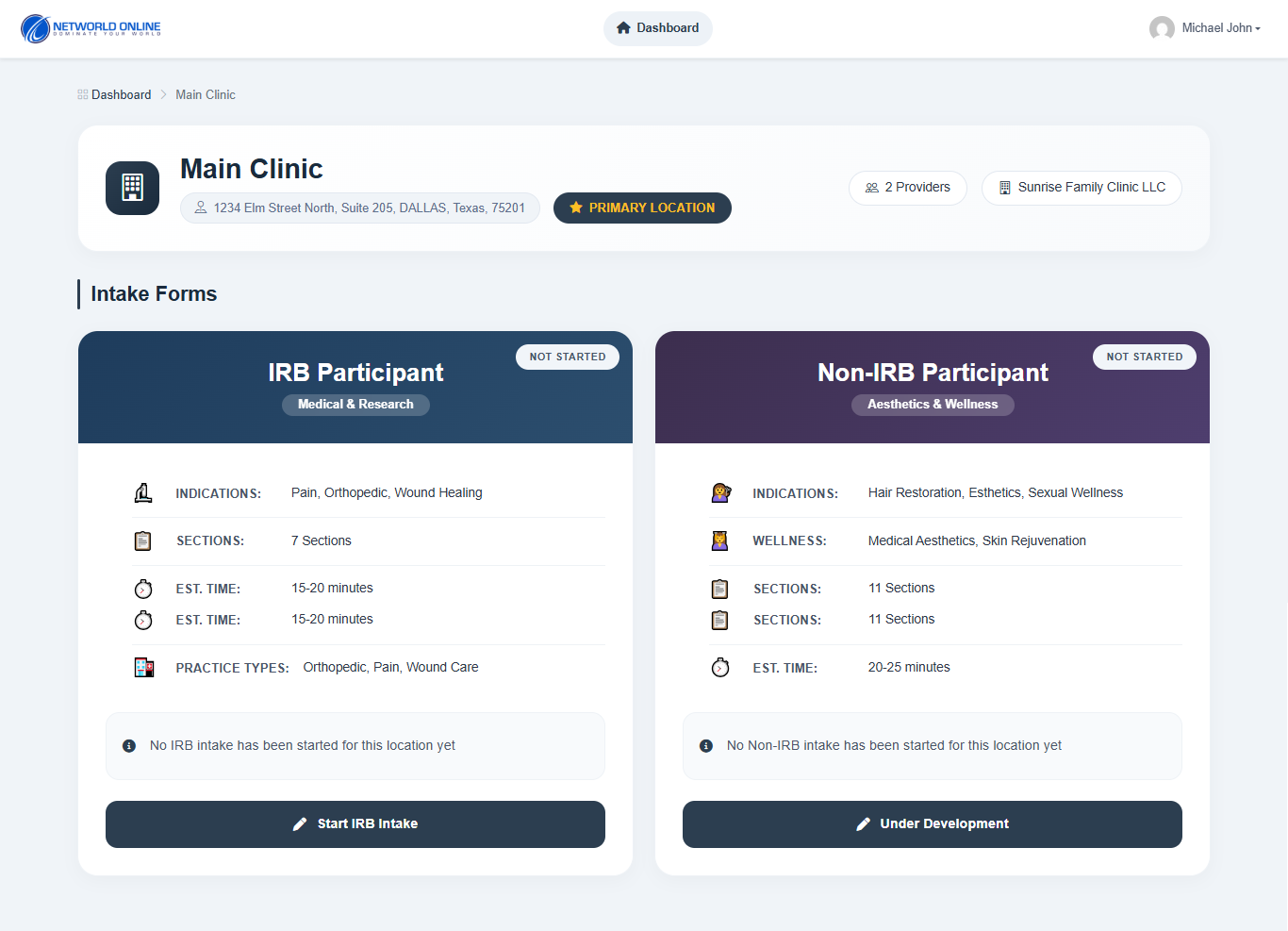
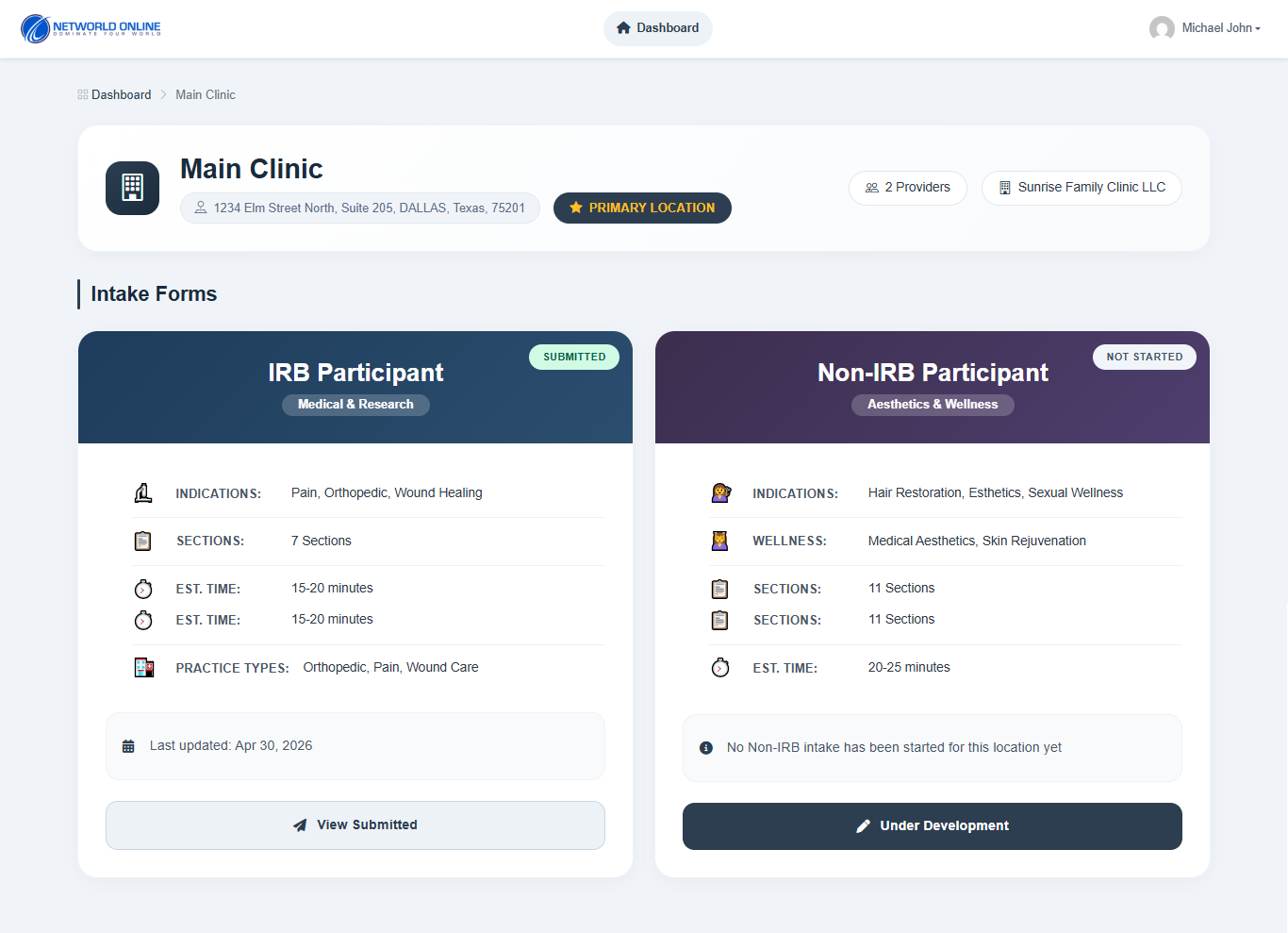
Dashboard Manage Button on Location Card
  1. From the Dashboard, click Manage on the location card
  2. Under Intake Forms, find IRB Participant
  3. Click Start Intake
Select IRB Participant and click Start Intake

Form Details:

DetailValue
Total Sections7 Sections
IndicationsPain, Orthopedic, Wound Healing
Estimated Time15–20 minutes

Important Rules

RuleDescription
All sections mandatoryYou must complete ALL 7 sections
No skipping required fieldsAll required fields must be filled before proceeding
Dynamic fieldsAdditional fields appear based on your selections
Save & ContinueEach section has a Save & Continue button
Back buttonEach section has a ← Back button to return to previous section
Must save to proceedYou cannot move forward without saving the current section

⚠️ Important: You cannot skip sections or required fields. Each section must be saved before proceeding to the next.

IRB Participant Intake Form — 7 Sections

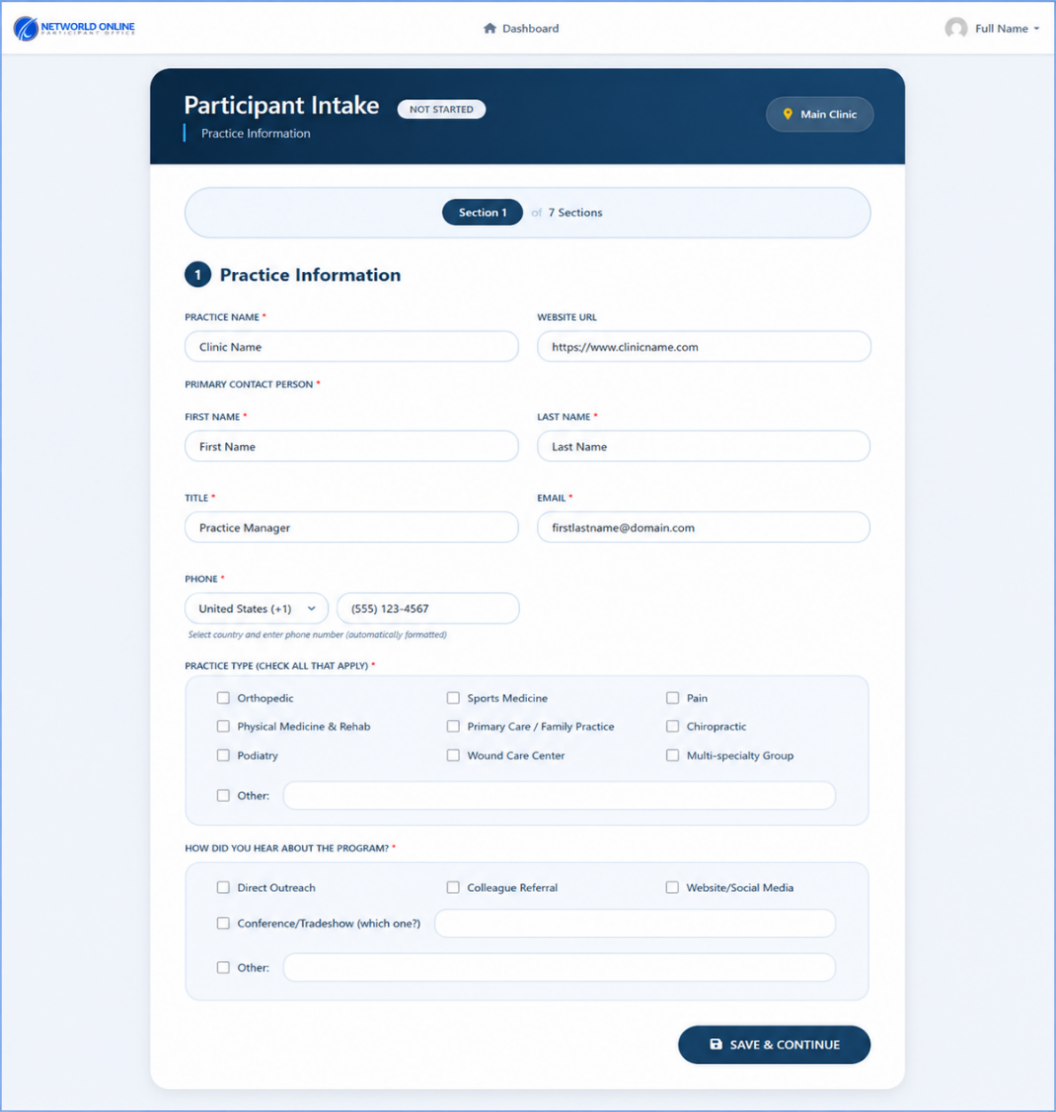
7. Section 1 — Practice Information

Overview: The first section of the IRB intake form collects basic practice information. IRB Step 1 of 7.

Section 1 Practice Information Fields

Practice Information Fields:

FieldRequiredExample
Practice Name✅ YesSunrise Family Clinic
Website URLOptionalhttps://SunriseFamilyClinicTest.com
First Name✅ YesMichael
Last Name✅ YesJohn
Email✅ Yesmichaeljohnson@email.com
Phone✅ YesUnited States (+1) 214-555-7890

Practice Type (Check All That Apply)

  • Orthopedic
  • Sports Medicine
  • Pain
  • Physical Medicine & Rehab
  • Primary Care / Family Practice
  • Chiropractic
  • Podiatry
  • Wound Care Center
  • Multi-specialty Group
  • Other (specify)

How Did You Hear About the IRB Program?

  • Direct Outreach
  • Colleague Referral
  • Website / Social Media
  • Conference / Tradeshow (specify)
  • Other (specify)

✅ Result: Click Save & Continue — data is saved, proceed to Section 2.

8. Section 2 — Program Selection

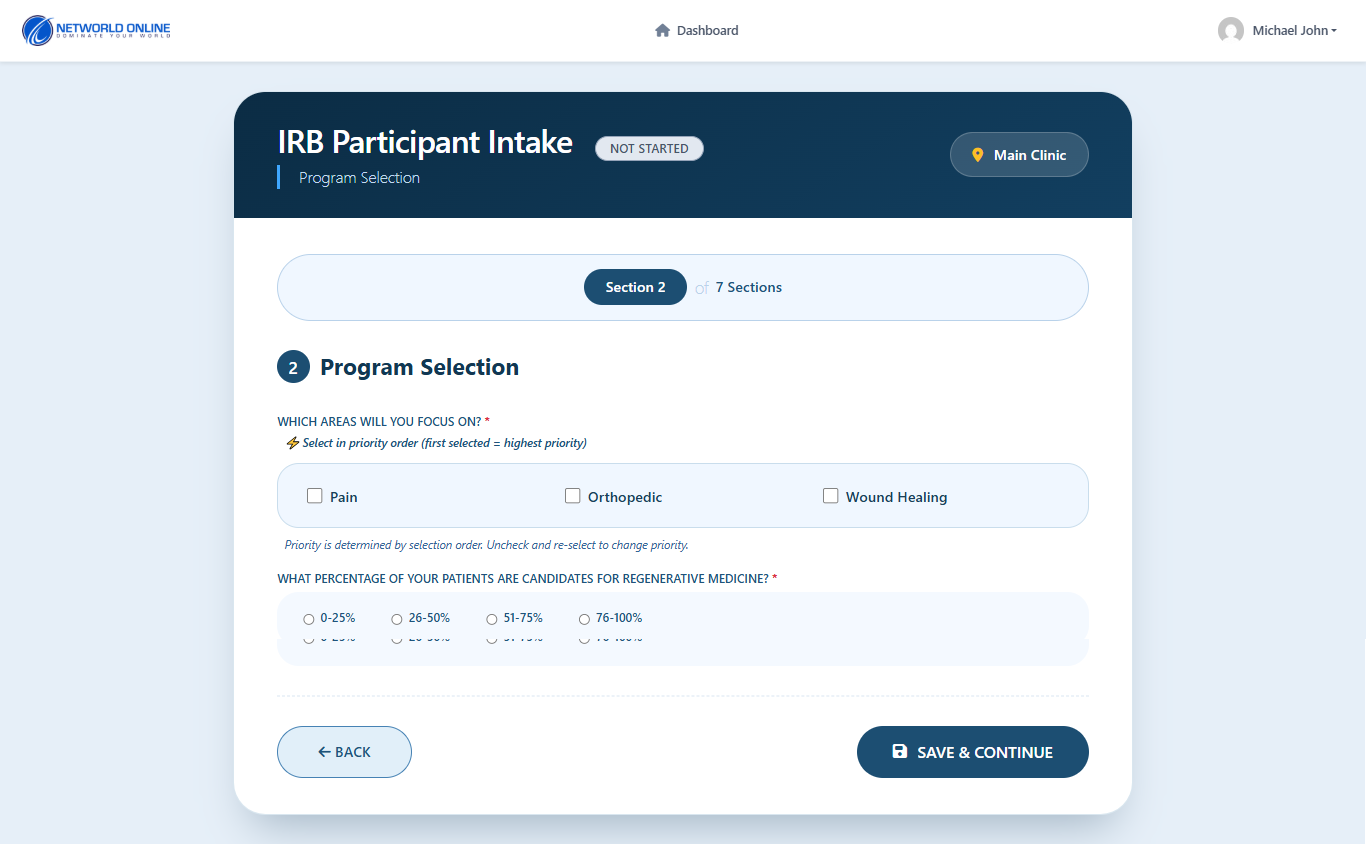
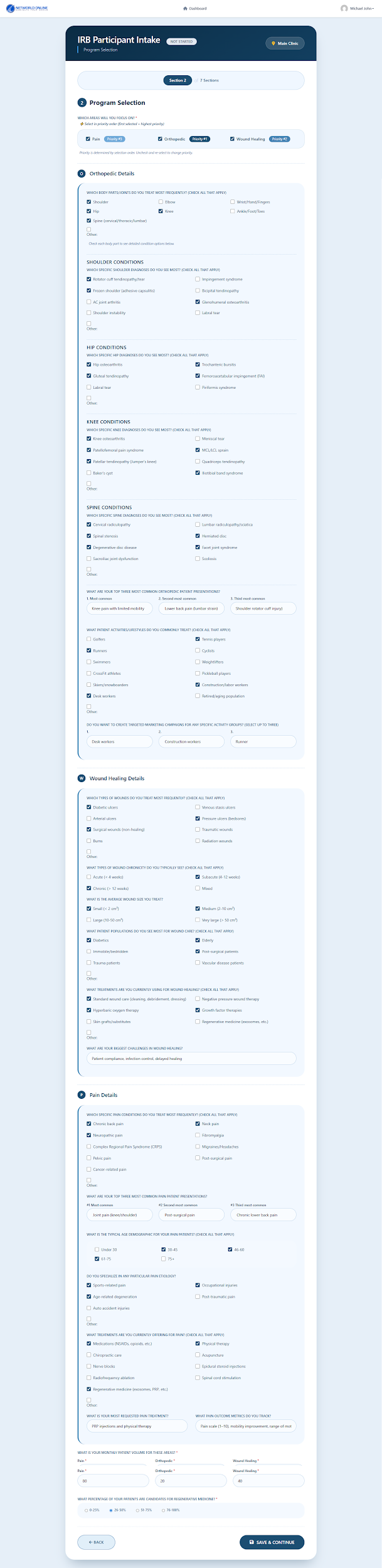
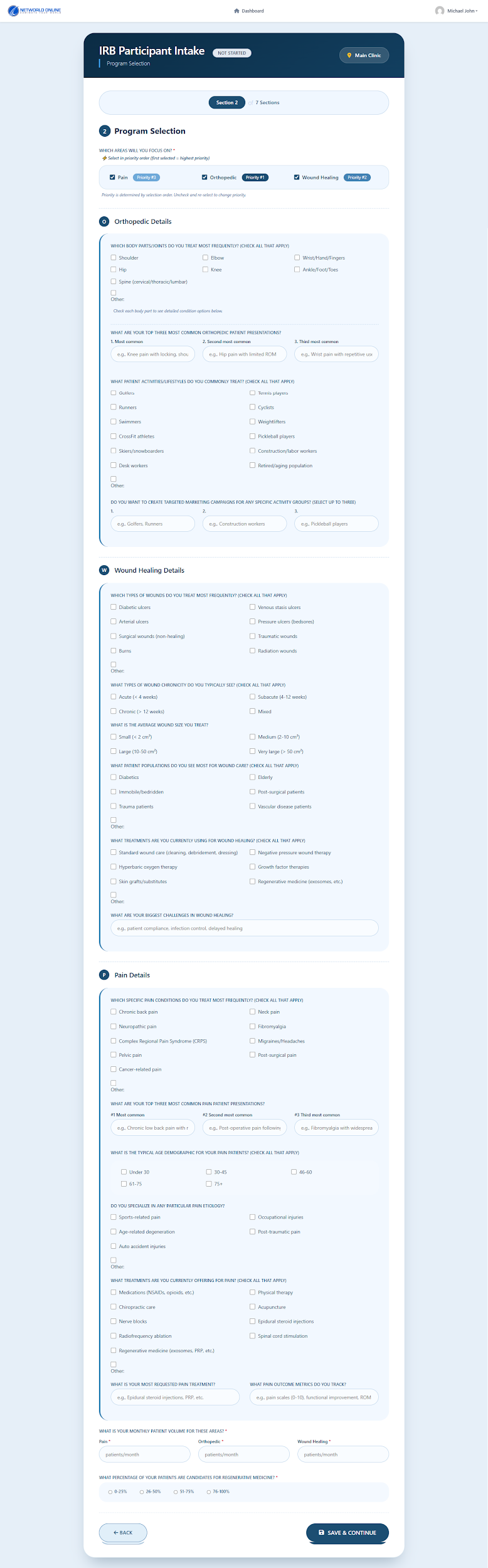
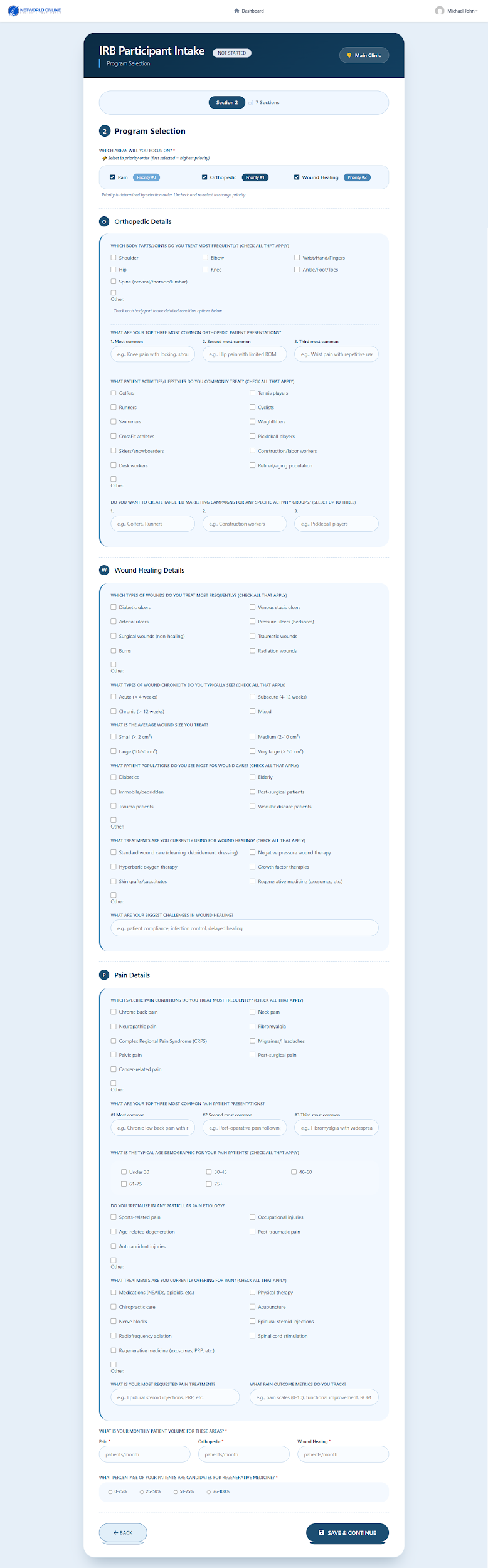
Overview: This is the most critical section. It defines your treatment focus, patient populations, and services. Your selections drive all downstream marketing strategy. IRB Step 2 of 7.

Section 2 Study Focus Selection

⭐ Priority Order Rule: The first focus you select becomes Priority #1. You can select 1, 2, or all 3 focuses. To change the priority order, uncheck and re-select in the order you want.

Study Focus Options:

FocusCoverage
🔵 OrthopedicJoint conditions, body parts treated, patient activities, targeted marketing campaigns
🔴 PainChronic pain conditions, demographics, pain etiology, treatments, outcome metrics
🟢 Wound HealingWound types, chronicity, average size, patient populations, treatments offered

🔵 Orthopedic Details (if selected)

Orthopedic Details expanded section
1. Body Parts Treated
  • Shoulder
  • Elbow
  • Wrist / Hand / Fingers
  • Hip
  • Knee
  • Ankle / Foot / Toes
  • Spine (cervical/thoracic/lumbar)
  • Other (specify)

🔗 Dynamic sub-fields appear for each body part selected. For example, selecting Shoulder reveals shoulder-specific conditions; selecting Knee reveals knee conditions, etc.

Shoulder Conditions
  • Rotator cuff tendinopathy/tear
  • Frozen shoulder (adhesive capsulitis)
  • AC joint arthritis
  • Shoulder instability
  • Impingement syndrome
  • Bicipital tendinopathy
  • Glenohumeral osteoarthritis
  • Other (specify)
Hip Conditions
  • Hip osteoarthritis
  • Gluteal tendinopathy
  • Labral tear
  • Trochanteric bursitis
  • Femoroacetabular impingement (FAI)
  • Piriformis syndrome
Knee Conditions
  • Knee osteoarthritis
  • Patellofemoral pain syndrome
  • Patellar tendinopathy (Jumper's knee)
  • Baker's cyst
  • Meniscal tear
  • MCL/LCL sprain
  • Quadriceps tendinopathy
  • Iliotibial band syndrome
Spine Conditions
  • Cervical radiculopathy
  • Spinal stenosis
  • Degenerative disc disease
  • Sacroiliac joint dysfunction
  • Lumbar radiculopathy/sciatica
  • Herniated disc
  • Facet joint syndrome
  • Scoliosis
2. Top 3 Orthopedic Patient Indications
RankDescriptionExample
1st (Most common)Primary indicationKnee pain with limited mobility
2ndSecondary indicationLower back pain (lumbar strain)
3rdTertiary presentationShoulder rotator cuff injury
3. Patient Activities / Lifestyles
  • Golfers, Runners, Swimmers
  • CrossFit athletes, Skiers/snowboarders
  • Desk workers, Tennis players
  • Cyclists, Weightlifters, Pickleball players
  • Construction/labor workers
  • Retired/aging population
  • Other (specify)
4. Targeted Marketing Campaigns (Select Up to Three)
PriorityExample
1st target groupDesk workers
2nd target groupConstruction workers
3rd target groupRunners

🔴 Pain Details (if selected)

Pain Details expanded section
1. Pain Conditions
  • Chronic back pain
  • Neck pain
  • Neuropathic pain
  • Fibromyalgia
  • Complex Regional Pain Syndrome (CRPS)
  • Migraines / Headaches
  • Pelvic pain
  • Post-surgical pain
  • Cancer-related pain
  • Other (specify)
2. Top 3 Pain Patient Presentations
RankExample
#1 Most commonJoint pain (knee/shoulder)
#2 Second most commonPost-surgical pain
#3 Third most commonChronic lower back pain
3. Typical Age Demographic
  • Under 30
  • 30–45
  • 46–60
  • 61–75
  • 75+
4. Pain Etiology
  • Sports-related pain
  • Occupational injuries
  • Age-related degeneration
  • Post-traumatic pain
  • Auto accident injuries
  • Other (specify)
5. Treatments Offered for Pain
  • Medications (NSAIDs, opioids, etc.)
  • Physical therapy
  • Chiropractic care
  • Acupuncture
  • Nerve blocks
  • Epidural steroid injections
  • Radiofrequency ablation
  • Spinal cord stimulation
  • Regenerative medicine (exosomes, PRP, etc.)
  • Other (specify)
6. Most Requested Pain Treatment

📝 Free-text field — Example: "PRP injections and physical therapy"

7. Pain Outcome Metrics Tracked

📊 Free-text field — Example: "Pain scale (1–10), mobility improvement, range of motion"

🟢 Wound Healing Details (if selected)

Wound Healing Details expanded section
1. Wound Types
  • Diabetic ulcers
  • Venous stasis ulcers
  • Arterial ulcers
  • Pressure ulcers (bedsores)
  • Surgical wounds (non-healing)
  • Traumatic wounds
  • Burns
  • Radiation wounds
  • Other (specify)
2. Wound Chronicity
  • Acute (less than 4 weeks)
  • Subacute (4–12 weeks)
  • Chronic (more than 12 weeks)
  • Mixed
3. Average Wound Size
  • Small (less than 2 cm²)
  • Medium (2–10 cm²)
  • Large (10–50 cm²)
  • Very large (more than 50 cm²)
4. Patient Populations
  • Diabetics
  • Elderly
  • Immobile / bedridden
  • Post-surgical patients
  • Trauma patients
  • Vascular disease patients
  • Other (specify)
5. Treatments for Wound Healing
  • Standard wound care (cleaning, debridement, dressing)
  • Negative pressure wound therapy
  • Hyperbaric oxygen therapy
  • Growth factor therapies
  • Skin grafts / substitutes
  • Regenerative medicine (exosomes, etc.)
  • Other (specify)
6. Biggest Challenges in Wound Healing

📝 Free-text field — Example: "Patient compliance, infection control, and delayed healing"

🔢 Final Fields — Mandatory for All Focuses

FieldDescriptionExample
Monthly Patient Volume — PainPain patients per month80
Monthly Patient Volume — OrthopedicOrthopedic patients per month20
Monthly Patient Volume — Wound HealingWound patients per month40
% Candidates for Regenerative MedicinePercentage of patients eligible26–50%

✅ Result: Click Save & Continue — data is saved, proceed to Section 3.

9. Section 3 — Geographic Targeting

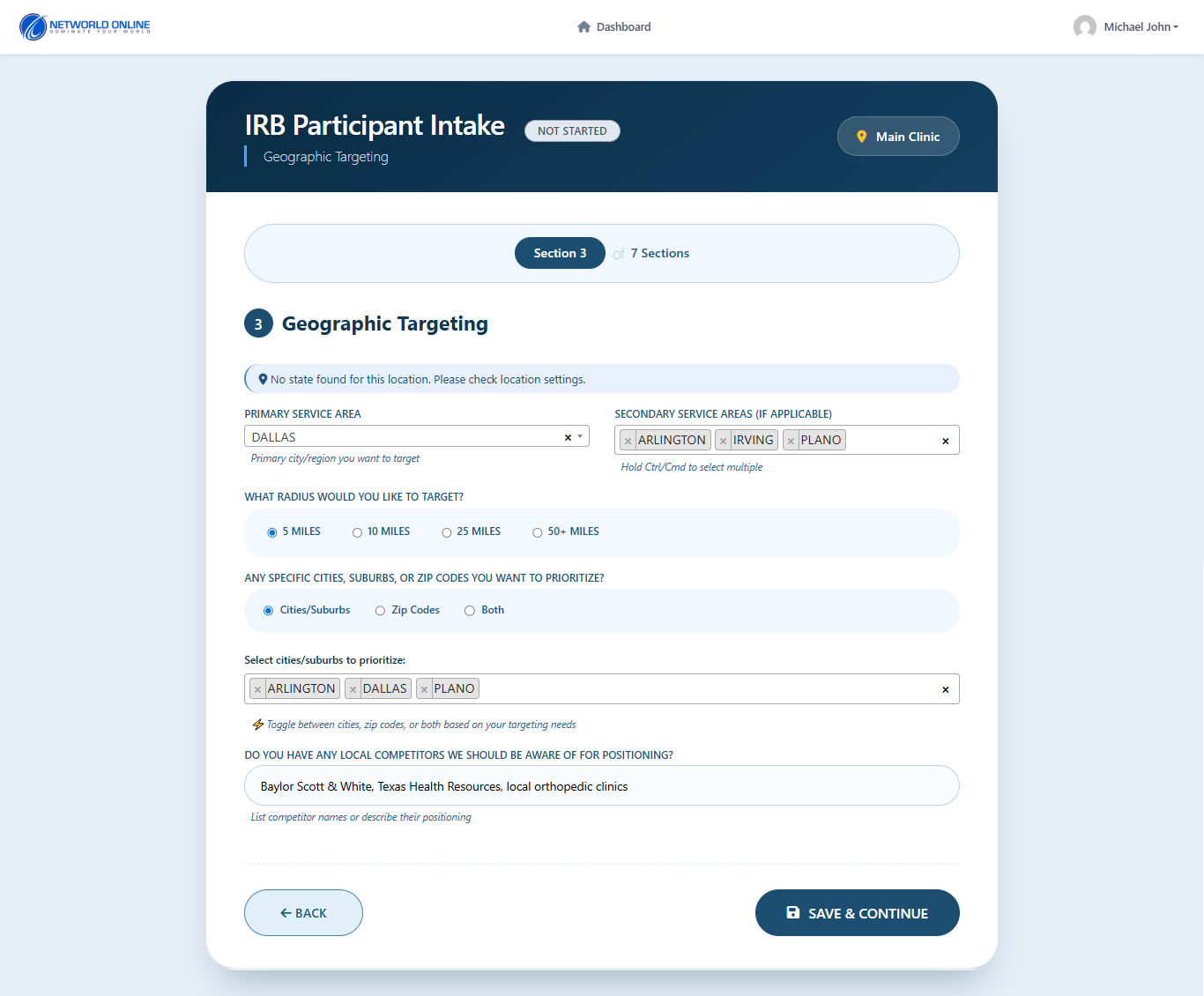
Overview: Define your service area, target radius, and local competitors. IRB Step 3 of 7.

Section 3 Geographic Targeting Fields

Geographic Targeting Fields:

FieldRequiredExample
Primary Service Area✅ YesDALLAS
Secondary Service AreasOptionalARLINGTON, IRVING, PLANO
What radius to target?✅ Yes10 MILES
Prioritize cities, zip codes, or both?✅ YesBoth
Select cities/suburbs to prioritizeIf applicableARLINGTON, DALLAS, PLANO
Local competitorsOptionalBaylor Scott & White, Texas Health Resources

✅ Result: Click Save & Continue — data is saved, proceed to Section 4.

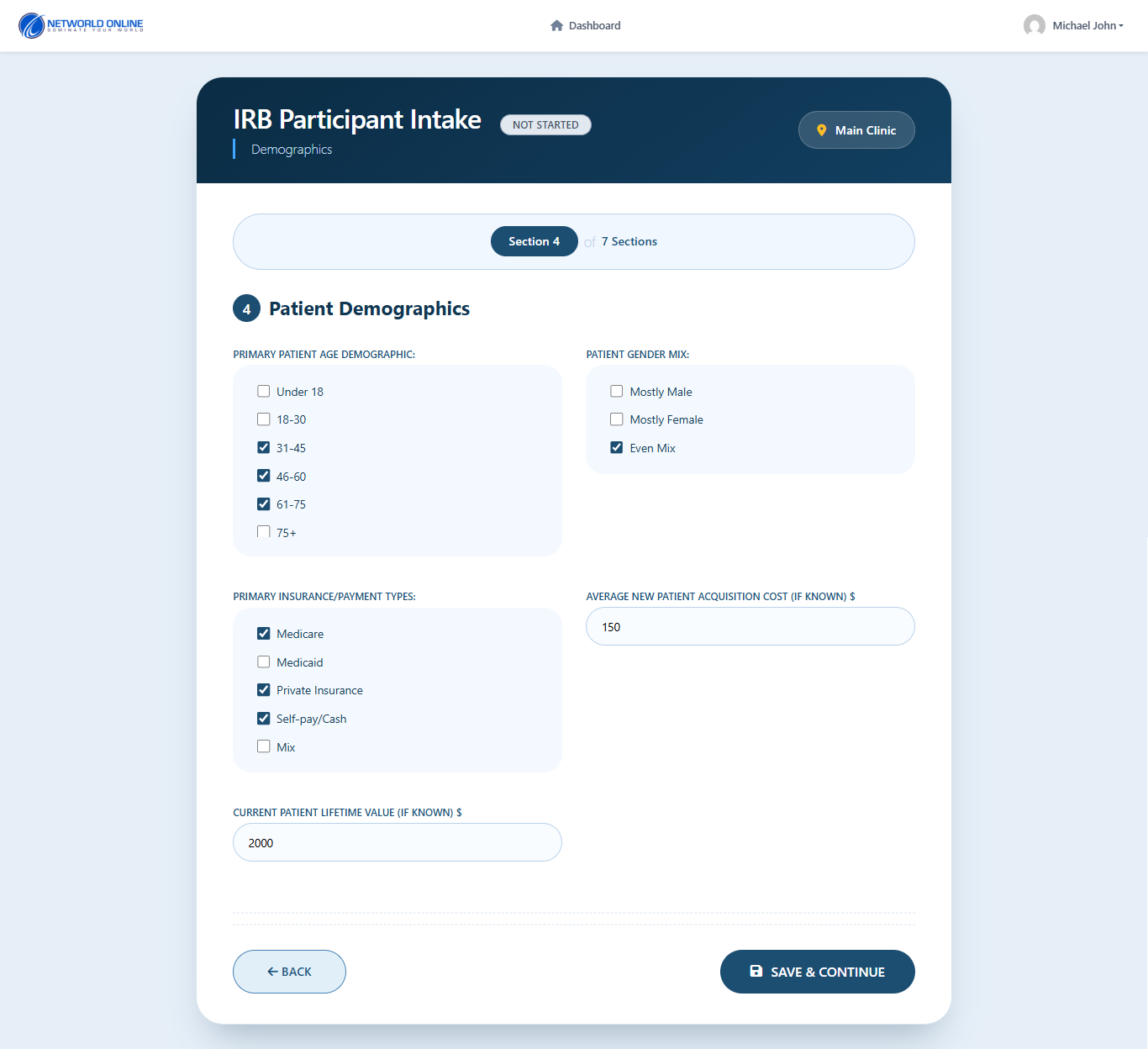
10. Section 4 — Patient Demographics

Overview: Define your typical patient demographics, gender mix, insurance types, and acquisition metrics. IRB Step 4 of 7.

Section 4 Patient Demographics

Patient Demographics Fields:

FieldOptionsExample
Primary Patient Age DemographicUnder 18, 18–30, 31–45, 46–60, 61–75, 75+31–45, 46–60, 61–75
Patient Gender MixMostly Male, Mostly Female, Even MixEven Mix
Primary Insurance/Payment TypesMedicare, Medicaid, Private Insurance, Self-pay/Cash, MixMedicare, Private Insurance, Self-pay/Cash
Average New Patient Acquisition CostDollar amount$150
Current Patient Lifetime ValueDollar amount$2,000

✅ Result: Click Save & Continue — data is saved, proceed to Section 5.

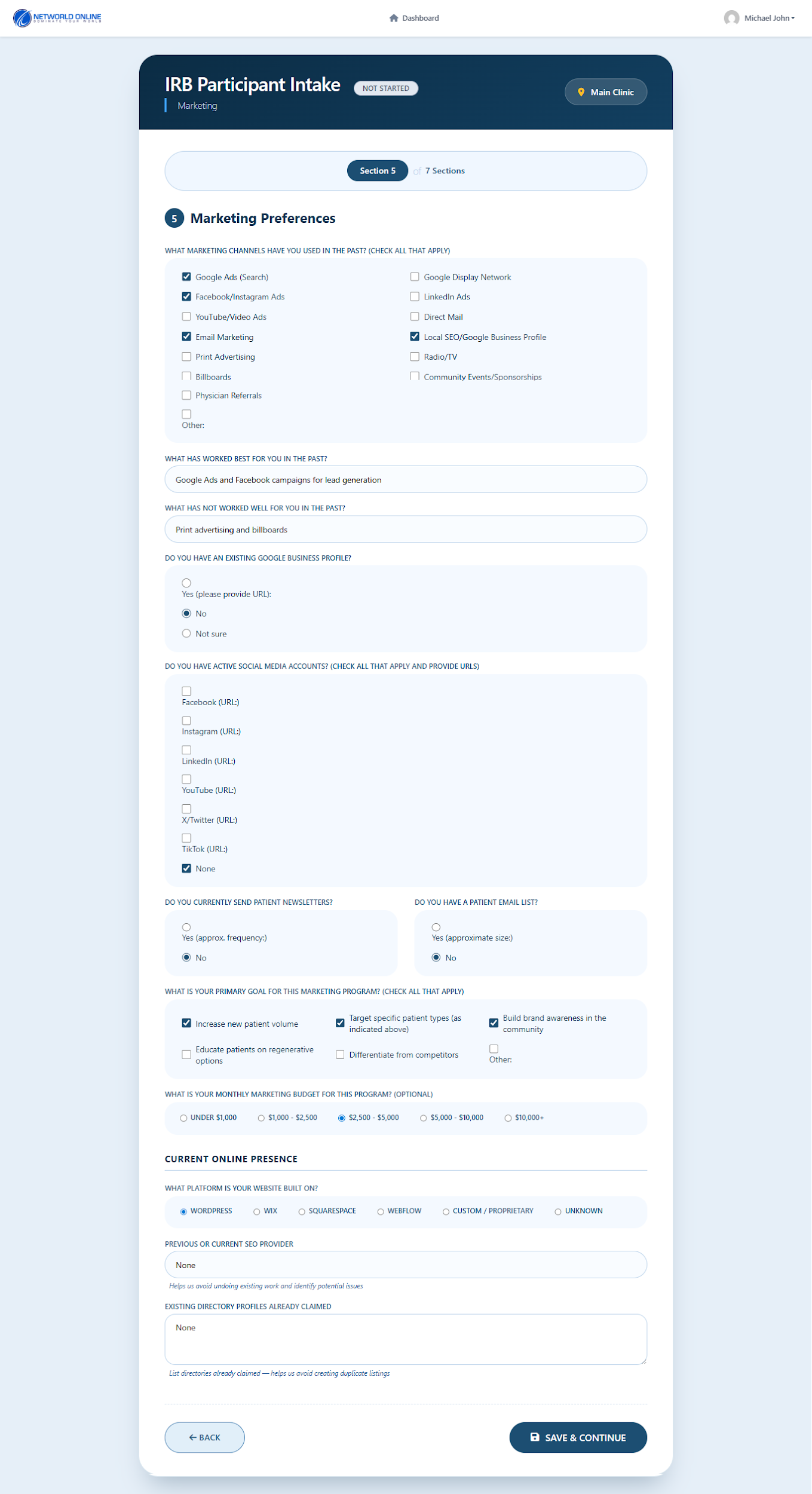
11. Section 5 — Marketing Preferences

Overview: Define your marketing history, channels, online presence, and budget. IRB Step 5 of 7.

Section 5 Marketing Preferences

Marketing Channels

FieldExample
What marketing channels have you used?Google Ads, Facebook/Instagram Ads
What has worked best?Google Ads and Facebook campaigns
What has not worked well?Print advertising and billboards

Online Presence

FieldExample
Existing Google Business Profile?No
Active social media accounts?None
Send patient newsletters?No

Goals & Budget

FieldExample
Primary goal for marketing programIncrease new patient volume
Monthly marketing budget$2,500 – $5,000

Current Online Presence

FieldExample
Website platformWordPress
Previous or current SEO providerNone
Existing directory profilesNone

✅ Result: Click Save & Continue — data is saved, proceed to Section 6.

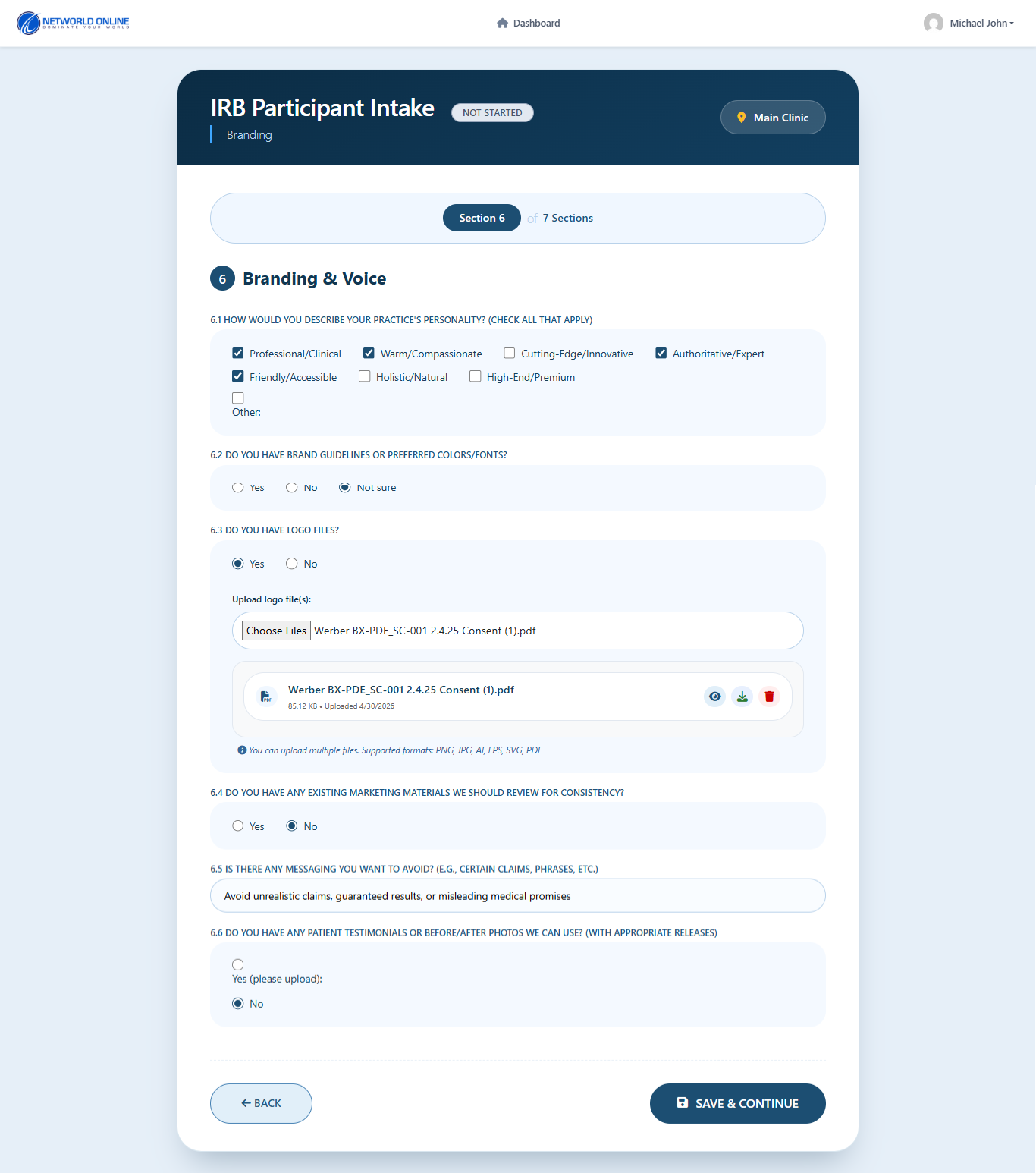
12. Section 6 — Branding & Voice

Overview: Define your practice personality, brand guidelines, logo, and messaging preferences. IRB Step 6 of 7.

Section 6 Branding and Voice

Branding Fields:

FieldOptionsExample
6.1 Practice personalityProfessional/Clinical, Warm/Compassionate, Cutting-Edge/Innovative, Authoritative/Expert, Friendly/Accessible, Holistic/Natural, High-End/Premium, OtherWarm/Compassionate
6.2 Brand guidelines or colors/fonts?Yes, No, Not sureNo
6.3 Have logo files?Yes, NoYes
Upload logo filesFile upload.pdf, .png, .jpg accepted
6.4 Existing marketing materials?Yes, NoNo
6.5 Messaging to avoidFree textAvoid unrealistic claims, guaranteed results
6.6 Patient testimonials or before/after photos?Yes (upload), NoNo

✅ Result: Click Save & Continue — data is saved, proceed to Section 7.

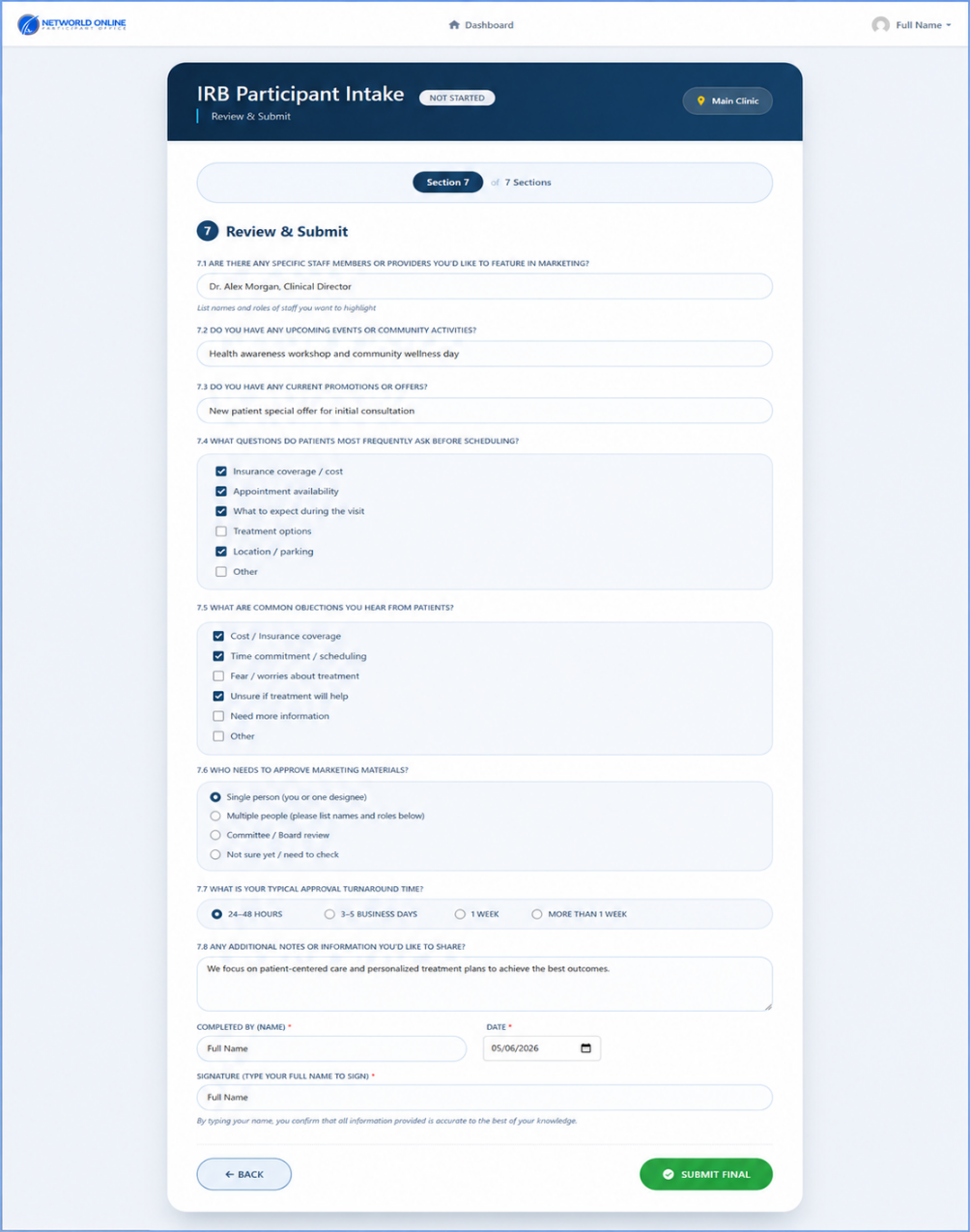
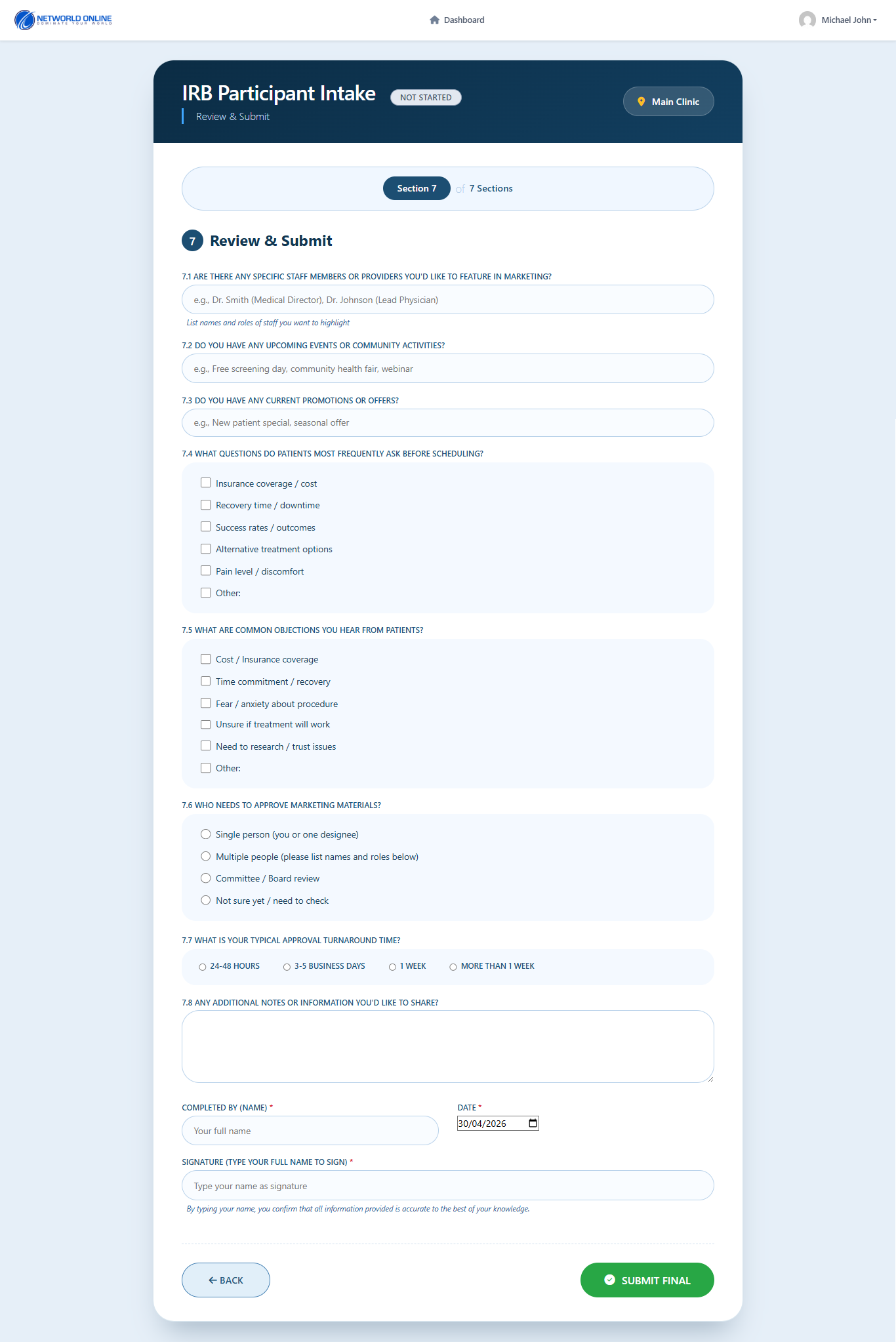
13. Section 7 — Review & Submit

Overview: This is the final section before submission. Review all information carefully before submitting. Final IRB Step (7 of 7).

Section 7 Review and Submit

Final Review Fields:

FieldExample
7.1 Staff to featureDr. Michael Johnson (Medical Director), Primary Care Team
7.2 Upcoming eventsCommunity health awareness events, free consultation days
7.3 Current promotionsNew patient consultation discount, seasonal wellness offers

7.4 Questions Patients Ask Before Scheduling

  • Insurance coverage / cost
  • Recovery time / downtime
  • Success rates / outcomes
  • Alternative treatment options
  • Pain level / discomfort
  • Other (specify)

7.5 Common Objections from Patients

  • Cost / Insurance coverage
  • Time commitment / recovery
  • Fear / anxiety about procedure
  • Unsure if treatment will work
  • Need to research / trust issues
  • Other (specify)

7.6 Approval Process

  • Single person (you or one designee)
  • Multiple people
  • Committee / Board review
  • Not sure yet

7.7 Approval Turnaround Time

  • 24–48 HOURS
  • 3–5 BUSINESS DAYS
  • 1 WEEK
  • MORE THAN 1 WEEK

7.8 Additional Notes

📝 Free-text field — Example: "Focus on patient-centered care and evidence-based treatments."

Signature Fields

FieldRequiredExample
Completed By (Name)✅ YesMichael John
Date✅ Yes30/04/2026
Signature (Type full name)✅ YesMichael Johnson

⚠️ Important: By typing your name in the Signature field, you confirm that all information entered is accurate and complete.

Section 7 Signature and Final Submit

✅ Result: Click SUBMIT FINAL to complete your IRB intake.

14. After Submission

Overview: Once you submit, the system processes your IRB intake information.

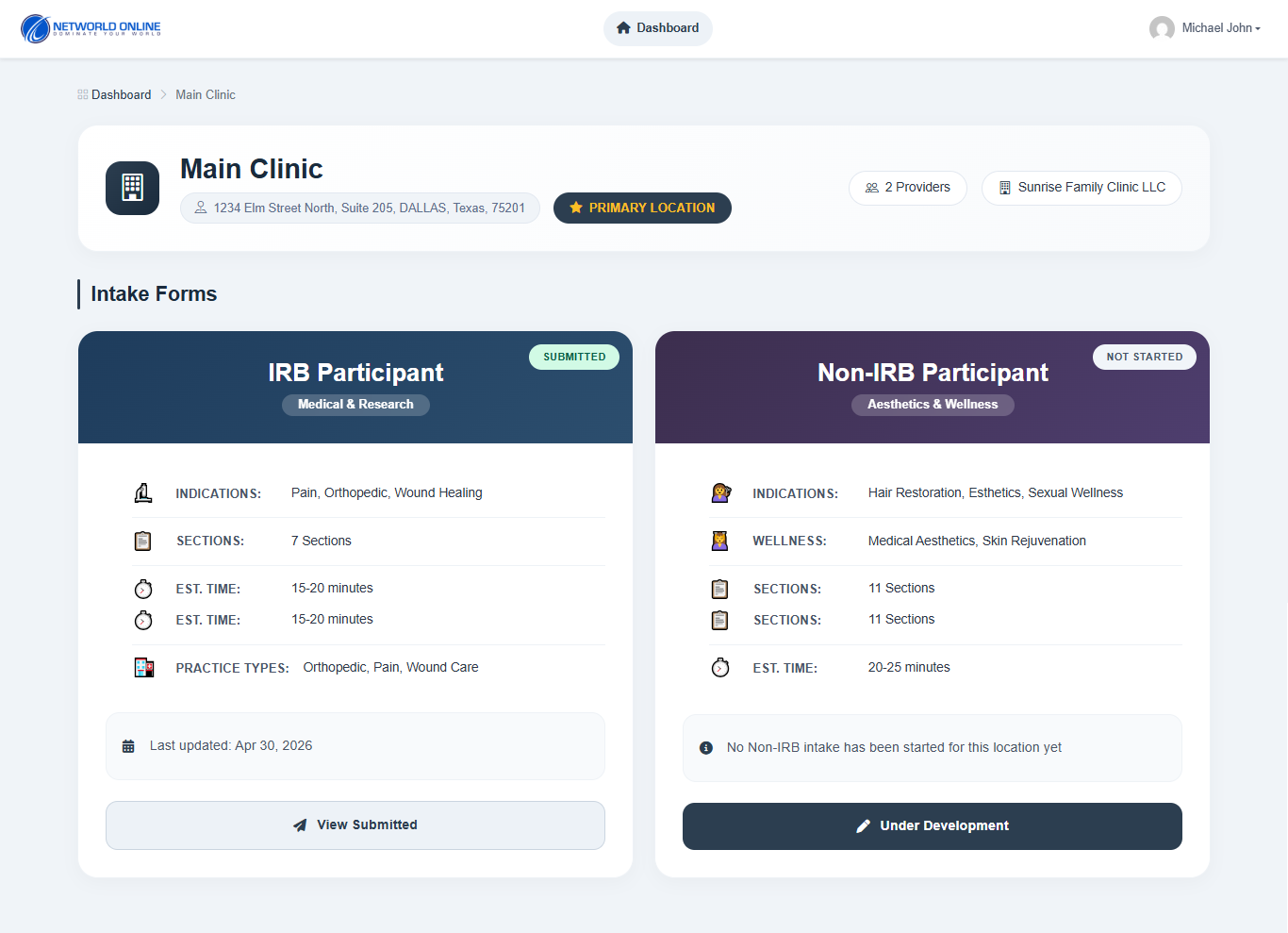
Submission Confirmed Dashboard Updated

What Happens Next:

StepAction
1IRB form status changes to SUBMITTED
2Data saved securely
3Redirected to the Dashboard
4Location card shows "SUBMITTED"

✅ Result: Your IRB intake is complete and submitted.

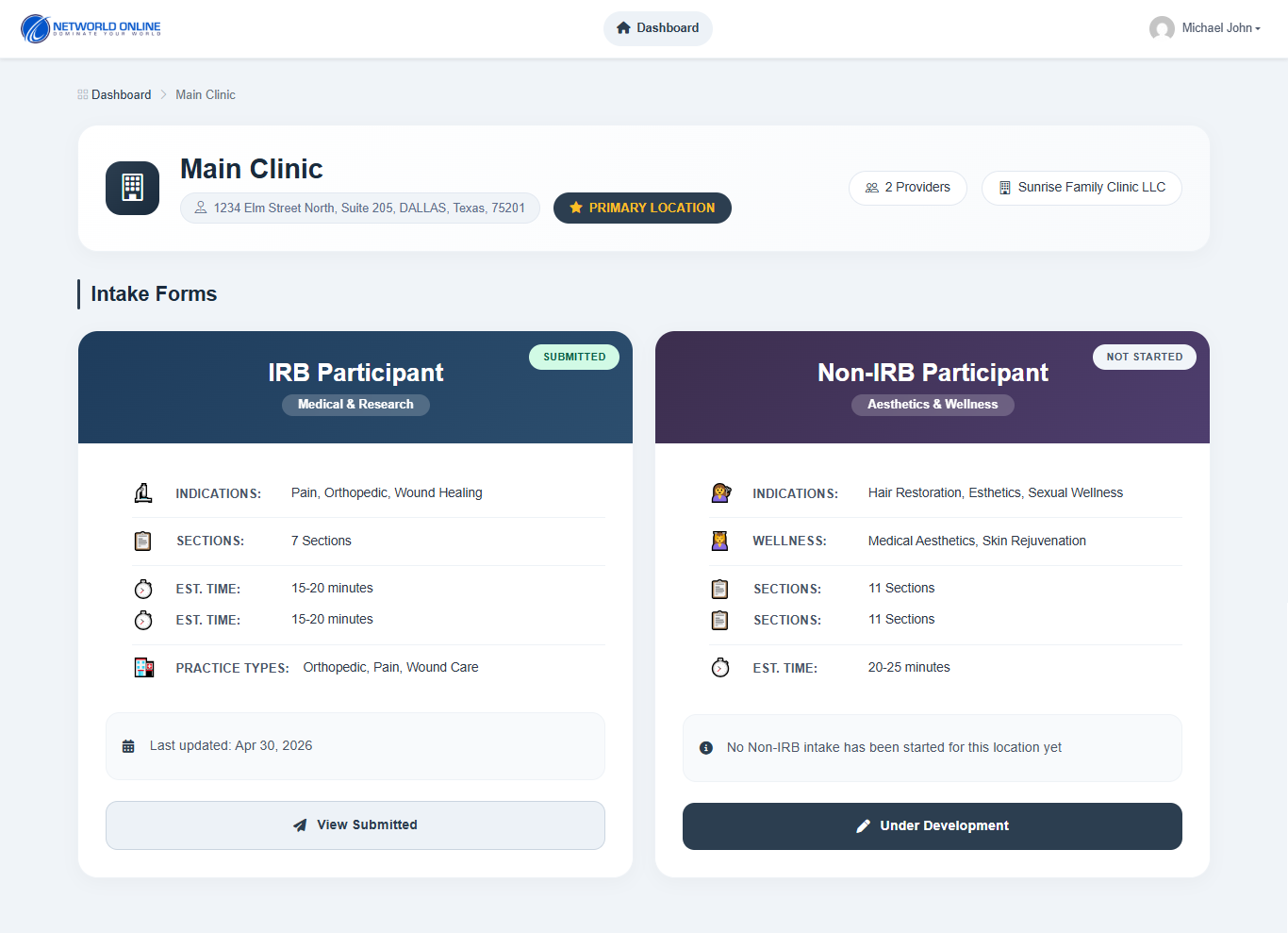
15. View Submitted Intake

Overview: You can review your submitted IRB intake form at any time.

View Submitted Intake All 7 sections with submitted data

Steps:

  1. From the Dashboard, click Manage on the location card
  2. Under IRB Participant, click View Submitted
  3. Review all 7 sections with your submitted data

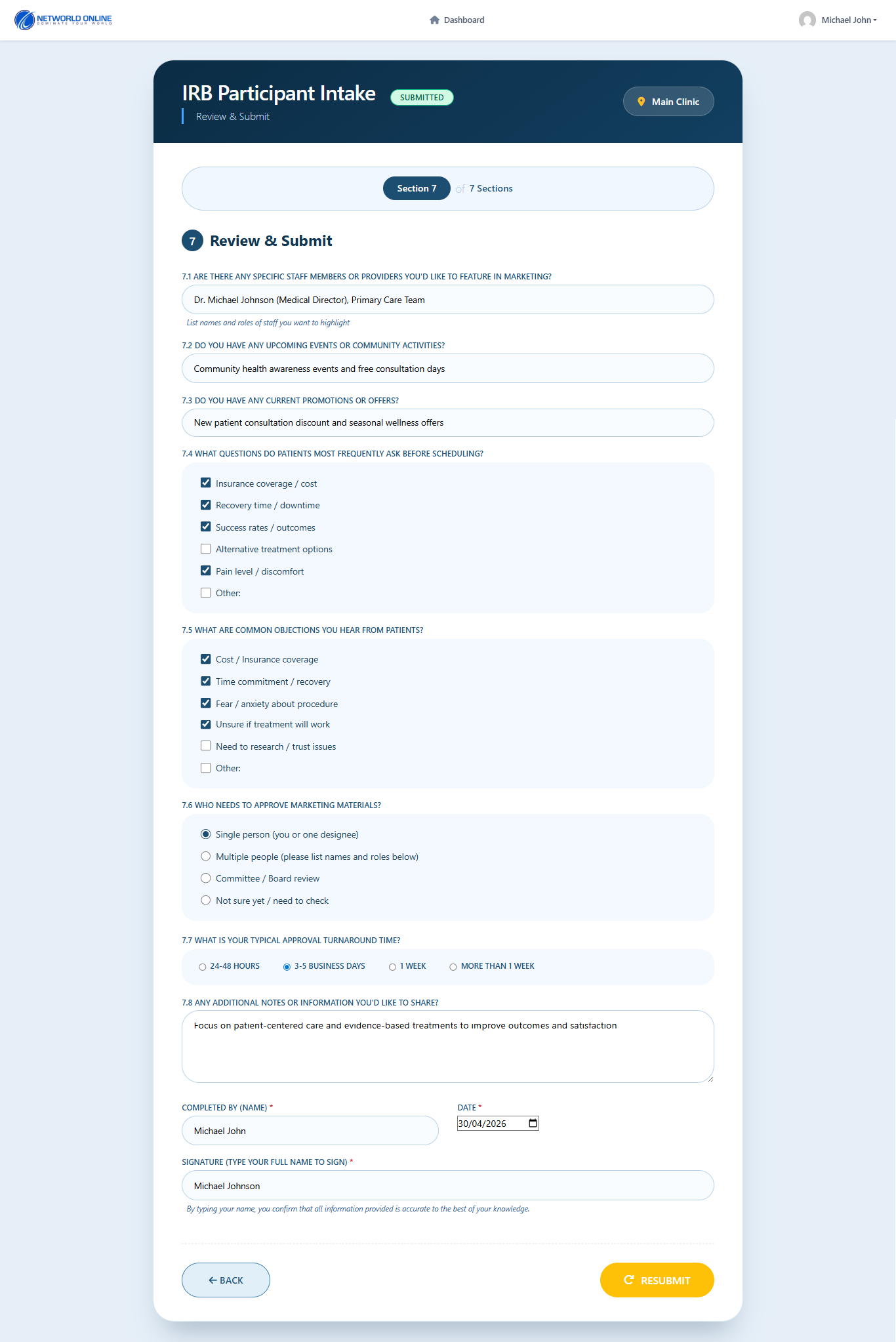
16. Edit / Resubmit IRB Intake

Overview: You can edit and resubmit your IRB intake form after initial submission.

Edit and Resubmit Navigate through sections to update

Steps:

  1. From the Dashboard, click Manage on the location card
  2. Under IRB Participant, click View Submitted
  3. Navigate to any section you want to update
  4. Make your changes
  5. Click Save & Continue through each section
  6. Go to Section 7 (Review & Submit)
  7. Click RESUBMIT

✅ Result: Updated IRB form is resubmitted successfully.

17. Add Another Location

Overview: You can add multiple practice locations, each with its own IRB intake form.

Add Another Location each location gets its own IRB intake

Steps:

  1. From the Dashboard, click Add New Location
  2. Fill in all required location details
  3. Click Add Location
  4. New location appears on your Dashboard
  5. Click Manage on the new location card
  6. Click Start Intake under IRB Participant
  7. Complete all 7 sections for the new location
  8. Click SUBMIT FINAL

✅ Result: New location added with its own completed IRB intake form.

Final Summary — IRB Intake Checklist

Overview: A quick recap of the key rules and best practices for the NWOL IRB Participant Intake.

Completion Summary NWOL IRB Intake V1.1

Completion Checklist:

#Checklist Item
1✅ 7 Sections mandatory — all must be completed
2✅ No field should be skipped
3✅ Dynamic fields appear based on selection
4✅ You can edit anytime after submission
5✅ Save & Continue on each section
6✅ Back button available on each section
7✅ Cannot proceed without saving current section
8✅ Data helps create a better marketing strategy

🎉 Congratulations! Your NWOL IRB Participant Intake is complete. The NWOL team will use your responses to build a personalized marketing strategy for your practice.

📌 Document Reference: CSR — IRB — Portal.NWOL.com — Location Administrators · Version 1.1